|
CompuByte
Software Tutorial By:
A.BASit.A.Bulbulia |

Contents
Introduction - The CompuByte POS Package
A brief description of
what the programs can do.
Invoicing
- Point of Sale ....
CASH
BOOK / GENERAL LEDGER LINK
Goods
Received Input - Direct Creditors Update - Order Entry
Customer
Database Maintenance.
Access
control and monitoring.
INSTALLING
THE COMPUBYTE POS SOFWARE
Adding terminals to your Server (Current PC) .Net
& DOS
LOG
INTO THE COMPUBYTE PROGRAM
Ending the Good Receiving (GRN) document and
printing barcode labels
Printing labels without adding stock in your
system:
Editing and deleting my entries in the cash sales
document
Ending cash sale document and printing the slip
Updating a lay-buy using an existing laybuy
account
DEBIT NOTES- RETURNING GOOD TO
SUPPLIER
REPORT.NET: DEBTORS AGE REPORT.
REPORT.NET: View if customers received invoices
sent via e-mail:
RECEIPTING ACCOUNT: Debtors and Creditor Payments
BILL
OF MATERIALS – For manufacturing companies or Take-aways !
PARAMETERS- CUSTOMISING THE SOFTWARE
CREATING YOUR OWN STATIONARY LOGO:
Introduction - The CompuByte POS
Package
What makes the CompuByte set of business Point
of Sale application programs so different and yet so popular when there are
hundreds of other programs to choose from ???.
The answer to this question would
undoubtedly be the best introduction we could give on the CompuByte POS set of
programs.
Simplicity in
usage. The operator is at all times in full
control of the package being used. Easy menu/icon driven choices guide you
through the different program modules. A person who has never used a computer
before could move freely within the package in less than ten minutes. There are
so many fancy packages around with lots of windows and clustered screens that
would daunt any user . . . So we at CompuByte have decided to keep our package
extremely simple - cursor or prompt driven. Our philosophy :
KISS ....'Keep it Simple very... very... Simple '
The programs
are individually tailored to your business within minutes. This feature is unmatched by any other
package local or imported. Any business would obviously like their programs to
be closely adapted to their current manual operations and not be forced to
change to the demands of a package which cannot be tailored in any way.
Proven reliability. The CompuByte package has been in existence for
the past decade and is being updated monthly to meet new client requirements.
There are at present over two thousand clients using the package.
Full
training with every package. Every package includes a free training four hours .
You can specify how you want to utilise your four hours of training. Although
we have full documented help facilities in the form of user manuals and video
tutorials that will definitely get you going . . . we entertain telephone and
remote online desktop support .
Complete Security. You have sole access control into
any one of the CompuByte program modules. The access codes can be set at
various levels and each can be changed by the security operator in your
business.
Peace of mind
processing. No
worries of corrupted files when the lights go off. All processing is done
directly to the disk with minimum usage of data memory in volatile ram.
Sometimes in even the best packages things can go wrong!!! That's when the
package really proves itself. Since we have three controller files
to any input (i.e besides the normal debit and credit
entry check there is a third file check for any disk disruption, this will
immediately warn you of a corruption or security bridge on any module.) After a
system crash you can begin working from where you left off.
A brief description of
what the programs can do.
The CompuByte set of programs are fully
integrated over all modules, each module can work entirely alone. It is
also multi-user and net-bios compatible to any networking environment. It is
configured in such a way that you can effectively operate on any number of
different companies within the one package. You are also introduced into the
programs through a training company which will reside on your disk for you to
experiment and train. All hard disk maintenance like backup routines, hard disk
cluster error corrections, disk filtering and compressions are handled by the
package.
So, what are the basic programs modules in
the package????
Invoicing -
Point of Sale ....
In any business the most important function
is usually that which generates revenue. The CompuByte package handles this
aspect most efficiently. Within this one module you could generate the
processing of all cash and account sales as well as all other demands made on
your business most frequently like paying petty cash, orders, lay-bye's,
picking slips, checking your cash floats ,seeing your profitability analysis
etc. All transactions update stock and other account files immediately.
Documentation can be on normal cash register roles or invoice paper (or both)..Facilities for cash register drawer linkage and scanning
are readily available... Search facilities via cataloguing and description are
super-fast (1.2million line items in under 2 seconds). If you have
branches or just work from home you have an option to share files over a secure
VPN.
Day end processing ......
The module could be activated at the point
of sale terminal or individually. What it really does is to check on all the
different accounts that were activated within the day’s work and generates all
the reports like representative sales analysis, profit analysis, till shortages
or surpluses, vat analysis, cash book and bank status reports etc.
Stock package ......
This is where your stock reports are
generated. The CompuByte stock package is unique and has functions that you
will never see in any other package . It is the only
package that will offer the following as standard features.
·
Auto update to reorder pointers working from sales
history.
·
Auto selection of fields sighted according to the
product or products you keep. This facilitates for breakdowns within a product
range with auto increments... no need to give every size you keep a different
code.
·
Stock entry in accordance to group, category or
department selection.
·
Stock call up facility by means of a self-generated
code, suppliers code or even multiple nested codes
which makes the selection of alternate stock products a hassle free chore.
·
Top-Seller list according to month or months . Promotions product set via time periods,
·
Label generation either through bar coding or
normal printouts on all stock items.
·
A six way facility to update stock price
fluctuations. Increase cost & selling by percentage ...multiply cost by
percentage to automatically work out new selling prices...Work out cost from
present selling price.. Use price markers ... or do
individual price updates. Print out any stock report in the
format you custom design on the screen.. A great help
in the generation of stock reports for stock take, representatives or mail
shots.
Besides the normal functions of any
debtors system the CompuByte system has the following standard extras.
·
No need to give each debtor a unique account
number. The computer generates an account number and the operator has the
facility to call up the account just by entering part of the debtors name or
use the account number directly.
·
A facility to view and reconcile an account from
inception. With the ability to begin the recon from the last nil balance, from
any particular date or from last statement balances.
·
The facility to monitor post
dated cheques received.. with
the formation of a full accounting Bill Book maintenance.
·
All representatives / area coding commissions and
reports are fully supported.
·
Auto monthly debit / credits generation possibly
for service contracts, rental collections .. ect . . .
·
Auto letter generations to overdue accounts ...use
your own set of letters and the programs will generate the required mail shot.
·
Scheduled Payments – You can allow an invoice to be
paid over a period of months and choose when the payments are going to be paid.
Like any other creditors package but with
facilities similar to the debtors module..
·
A full monitoring of all bills issued... remittance
advice and cheque print facilities included... Ability to create mock or trial
payment runs to see how cash flow would be affected by making certain payments.
CASH BOOK /
GENERAL LEDGER LINK
This module keeps a full reconciliation of
all cash and bank transactions in the normal columnar bookkeeping style. i.e a column for each account.
Since the CompuByte package is fully integrated the cash book and general
ledger are automatically updated whilst entries are being posted in other
modules. The only time an input is done in the cash book module is when money
is deposited into the bank or when bank charges are to be inserted. Also
included is a facility to reconcile cash book via modem (Beltel)
Goods Received
Input - Direct Creditors Update - Order Entry
This module makes the programs stand out
and be noticed. When you receive goods you insert the items directly
into your stock files whilst simultaneously updating your creditors... and once
this has been done a goods received note can be
generated and all labels for stocks received can be printed.
You also have a full order entry system to
monitor orders placed with suppliers . . .
A
powerful aspect of the complete package. Although 99% of the reports are generated in the
different modules, you the operator can get the feel of generating your own
personalised reports like...What product have I sold over the past six months
and to whom have I sold the product to and what profit have or what is the
percentage ratio of my sales of one product to the different categories... all
this and much more can be generated . Your good
business sense and this powerful package will set controls in your business
you’ve never dreamt of.
Customer
Database Maintenance.
This module maintains and updates the
database files created while using the point of sale package. Printing of
Labels to customers etc,
If your business depends on competitive
pricing for debtors this module is a must. You can set a discount structure
separately for each debtor within each specific stock group or category he buys
from. So the next time you make an invoice out to the debtor it will
automatically show you what discount to allow.
Access control
and monitoring.
The CompuByte package has full security
options. This allows specific users to use certain screens or allow certain
functions like discounts, credit notes etc. The usage of
access codes are monitored using any editor.
This innovative module is activated in any
of the programs via the F10 key. It has a powerful database function which
allows the managing of :-
·
Messages
·
Contacts
and Telephones
·
Appointments
·
Important
Notes
·
Things To
Do
·
Memo’s
·
Lost
Sales
·
Special
Deals
The above is just a glimpse through the
package..
Why
not test drive the package now !!!!.
www.compubye.co.za/forum
Programmer :
Mr.A.Basit.A.Bulbulia (M.A.P) Wits..Bus.Sch..
INSTALLING THE COMPUBYTE POS SOFWARE
Welcome
to this Innovative CompuByte Point
of Sale software tutorial. When you purchase your software it will
either be as a download off the internet or on a dvd disc or flash drive. Either way you click on my
computer choose the location where the software
resides on; in this case it is on the I drive. Search for the setup file and
double click on it; this will begin to download the CompuByte software on your
hard drive.
Things
to remember when installing the Innovative
CompuByte Point of Sale software if you already have the dotnet framework
existing on your computer it will not install the dotnet
framework and you continue to install the crystal reports. When installing the
crystal reports you will be asked to insert a product key please leave that
field blank and continue to install the crystal reports, when installing
crystal reports if you encounter an error please ignore that and continue to
install, once the Innovative
CompuByte Point of Sale software is installed on your
computer you will see the Innovative
CompuByte Point of Sale icon on your desktop you click on
the icon an get to your log in screen you will be asked to insert your operator
number and password. For the sake of this tutorial the default password is
1234.
When
using the software for the first time click on setup new installation button
you will then be asked to insert your level ten password which is 1234 and u
will now come to your company setup screen on this screen you will see the
default company and next to it the edit button we will leave the default
company as zero the training company for this tutorial so you click on the
default company zero and you have your training company with your address and
details leave this as is. You will see at the bottom you have a ten digit cost
coding starting with zero as E, B as one and L as two etc
you update it an come back to your setup screen once you are there you will b asked the number of terminals you will be having if you
have more than one terminal you can change it here. I will now change mine to
two terminals. The vat rate is 14% so I will leave the vat rate as 14% if your
price is inclusive off vat u click the inclusive block then it will make your
prices inclusive automatically. If you do not want to change the selling prices
you must click on cannot change selling price and your access level will be 7.
You have your minimum profit margin which is 5% with a level access of seven.
Your synchronisation drive is where your backups are being done in this case
its T drive, it will then ask u where your cash draw is connected if it is
connected to Lpt1 then u click on that, you then choose your pole display you
can also choose the speed at which your CompuByte software will be working if you are working for example in a supermarket where u need to scan the document an
immediately process the next item u will then click all the boxes below i.e auto accept unit 1,auto selling price, and suppress
discount. If u need to insert a unit every time then u
can un-tick the auto accept unit block and accept selling price unit.
At
the bottom of the screen you get to tick and add how many printers you have
attached to your computers. If you insert two printers then two blocks will
appear you select which printer you have as one and which one you have as two
for the sake of this tutorial select printer one as usb
001 and printer two as Lpt 1 which is your slip
printer u then click on the different documents based on where u want the
documents to be printed. On your right hand side u specify the type of paper
each document will b printed on for example A4 paper
or cash slip paper.
You
then select your store type by clicking on the drop down arrow you can either
choose the default setting which is for stores that do not have sizing, for
example jewellery, electronic or computer stores. If u choose sizing your stock
file will be set up for sizing which is used in clothing and shoe stores. There
is also an option for takeaways, spares shops and rollings which is for curtaining and dress
fabric stores where monitoring of cut and full rolls are done. Once you have
made your choice you will click on the set button. Remember you must only set
select store type if you are using the software for the first time.
On
the top right hand side of the set up company screen u get the branch options
you only set this if you have a head office and have branches. You will tick
this company is the head office if you are setting up the software at the head
office if you are setting up the software at the branch you will have to insert
the head office ip address an drive share name. You
then can close the screen or click on the ok button to return to the main log
in screen.
On
the main log in screen you can set up your operators an passwords by clicking
on operators and passwords you then enter your password there are ten password
levels with level ten being the highest and level one the lowest. Level ten
passwords can be used even when a level five or six password is asked for.
Level seven to ten passwords are usually reserved for the owner or manager of
the business. Then you have your operators who will be using your programme,
you then add your different operators names with their passwords.
Also
very important is that if you want to change your company from a training
company to your main company, you click on change company put in your level 10
password and choose to which company you want to change to, you then right
click on it edit company and then proceed to put company details .You then come
back to the log in screen.
If
you want to change your terminal to two then you change your data drive and
terminal to change it on your network. Remember if you bought a single user
licence then you have only one terminal.
If
you bought a multi user licence you have up to four licences or more.
On
the log in screen you have a network setup button ,this is used if you have a
network and if you want your terminal to connect to your server or to a network
printer .once you click on network setup you then click on the add button. You
will then see the network setup dialogue. The first thing is to setup your
servers drive letter by clicking on the drop down list and choosing a drive
letter .You then choose the network path example // the server ip
address or name then the / and the servers hard drive share name. You also have
to put in your server user name and password. You then click close and your
network is now set up.
You
are now ready to use your CompuByte
Software by inserting your operator number and password
Adding terminals
to your Server (Current PC) .Net & DOS
For .Net Windows
CompuByte POS
If you have only on PC and need to add a
terminal /’s then follow these steps. (Windows XP)
Things to do on server (Current PC)
1) Make sure you have a paid license to add a
terminal to your current PC ; if not purchase one from CompuByte (email us)
2) Share your hardrive
on your current PC if not already shared; double click on My Computer then
right click on Local Disk [C:] then choose Sharing And Security ; click on
Sharing and share drive as C (Just enable file sharing) ensure that full read
write access is allowed.
3) Double click on My Computer then My Network
Places then View network connections then Right click on Local Area Connection
click on Properties - > Double click on Internet Protocal
(make sure it’s ticked) – make note of the set IP ; if
one does not exist create it as 10.0.0.10 submask
255.0.0.0 and gateway set as 10.0.0.2 or leave blank if you don’t have an ADSL
router or not connected to the internet.
4) Double click on the Innovative CompuByte Pos icon then in logon screen double click on Change Data
Drive and Terminals . Insert C for data drive and
insert the number of terminals you will now have on the network.
Things to do on Teminal/’s
5) Now on your new terminal do the same as
explained in 3 but change the terminal IP to 10.0.0.20 (if the terminal is the
second one installed ; if it’s the third one install insert 10.0.0.30)
6) Now on the new terminal ensure .Net Windows
compubyte software is installed ; click on Innovative CompuByte Pos icon then click on network setup then choose drive F
and insert the slash slash and IP then slash and
share drive you inserted in Step 2 and 3 above i.e
\\10.0.0.10\c
7) In this network setup you can also insert
any shared printers you may be using (LPT1 lpt2 etc)
on the server – make sure the printer is shared on your server and given a
share name like slip etc.
8. Now on the terminal click on Change Data
Drive and Terminals . Insert F for data drive and
insert the number of terminals you will now have on the network. Then make sure
you click on Reset Terminals and then insert the terminal number.
9) If drive is not mapped check cabling,
router, sharing etc. - Also try using the dos command below in setting
up DOS version from items 5 tp 7
10) From Login screen also click on Quick
Setup – New Installation and set up the parameters.
For Dos version of CompuByte POS
If you have only on PC and need to add a
terminal /’s then follow these steps. (Windows XP)
Things to do on server (Current PC)
1) Make sure you have a paid license to add a
terminal to your current PC ; if not purchase one from CompuByte (email us)
2) Share your hardrive
on your current PC if not already shared; double click on My Computer then
right click on Local Disk [C:] then choose Sharing And Security ; click on
Sharing and share drive as C (Just enable file sharing) ensure that full read
write access is allowed.
3) Double click on My Computer then My Network
Places then View network connections then Right click on Local Area Connection
click on Properties - > Double click on Internet Protocal
(make sure it’s ticked) – make note of the set IP ; if
one does not exist create it as 10.0.0.10 submask
255.0.0.0 and gateway set as 10.0.0.2 or leave blank if you don’t have an ADSL
router or not connected to the internet.
Things to do on Teminal/’s
4) Now on your new terminal do the same as
explained in 3 but change the terminal IP to 10.0.0.20 (if the terminal is the
second one installed ; if it’s the third one install
insert 10.0.0.30)
5) On your terminal Click on Start then All
Programs then Accessories then Command Prompt ; now you will see a black dos
window.
6) Issue (type) this command and press the
Enter key:-
net use F: \\10.0.0.10\C /PERSISTENT:YES
7) After typing this command make sure you see
this message “command completely successfully” ; if not make sure you have a
space between the F and \\ also check , router , cabling and sharing (See 2)
8. Now Issue (type) this command and press the
Enter key:-
F:
9) Now Issue (type) this command and press the
Enter key:-
CD\PROGRAMS
10) Now Issue (type) this command and press
the Enter key:-
COPY PARA-N.1 PARA-N.(Terminal Number)
11) Make sure you insert the terminal number ;
i.e if you setting up the second terminal than you
will issue the command as :
COPY PARA-N.1 PARA-N.2
12) Now Issue (type) this command and press
the Enter key:-
PARA
13) Only at number of terminals insert the
number of terminals you have on the network.
14) Now Issue (type) this command and press
the Enter key:-
MAKE-T
15) Now insert the terminal number you want to
create and press enter at all prompts until you return to the prompt E to end ;
here insert a capital E and you will return back to DOS box.
16) Now Issue (type) this command and press
the Enter key:-
EXIT
17) Now create a shortcut for the terminal by
right clicking on the desktop and choosing new and then shortcut ; in type the
location of the item ;insert:-
F:\TERM\2.bat
18. If the terminal is 3 then insert 3.bat
above
19) Name the icon as CompuByte Term 2 (or 3)
etc.
20) You can also right click on icon and
choose Properties and change Font 10x18 and Layout Screen buffer Size and
window size set Width 80 Height 25
21) You can make changes to the 2.bat or 3.bat
files by using any editor (notepad) and opening the files Example in notepad
open F:\term\2.bat
Click on the CompuByte icon to open
the program 
LOG
INTO THE COMPUBYTE PROGRAM

- The login screen is now open and available waiting for your login
input
- Your cursor automatically shifts to your terminal number(so usage
of the mouse is not necessary)
- Enter your terminal number Example terminal number 1, Press Enter after typing in the terminal
number
- You are now automatically shifted to the next field of input i.e.
Terminal Password. Enter in your password, usually 1234 (or whatever you
have set your password to be), Press enter. Once this is complete and
you are now required to enter in which company you will be using the
program with, use your mouse and click in the company box which is now
present in front of you or use the arrows on the keyboard and press enter
on the company which you would like to choose.
- You are now at your next field of input i.e. Operator number,
depending on how many operators are set to use you shall choose the
number. In this case we have only one operator to use, so we enter in the number 1 and press enter.(If you
have six operators and operator 3
wants to use the system then you type in 3 e.t.c)
- You are now shifted to your next field of input and that is
operator password. Enter in the password whatever it may be. In this case
the password is 1234 so we type in 1234 and press enter.
- Your program main menu, the window below opens up, connecting you
to the company which you selected.

·
Because
you are using the CompuByte program for the first time, we are going to start
by putting stock into the system. So roll your mouse and click on good
receiving (Block 6), or simply press 6, on your keyboard to select the good
receiving menu, then press Enter. The following window
opens up.
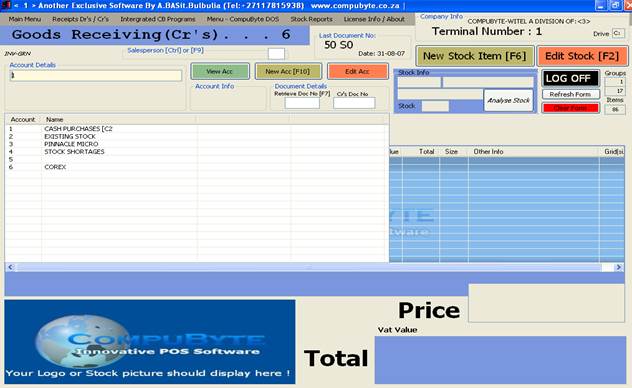
·
You are now into your program and if using the
software for the first time a reminder shall pop up stating that you have no
stock groups or items created
·
If you look to the top left of your screen you
shall see the word “Cash Sales . . . 1” written in bold flashing. When logging
in the box flashing shall be labeled “Cash Sales . .
. 1” and the number allocated to it is number 1.
·
If you move your arrow up or down using your
keyboard you shall move through the documents available by the program, each
document is allocated a number. I.e. Cash sales 1; Account sales 2; Cash refund
3.etc…..
·
“Goods
receiving” is number 6, which enables you to enter stock. I.e. if we are
receiving goods, this is the required document. We can select it by browsing or
shifting using the arrows up until we see the goods receiving document in the
flash box or by typing in number 6 on the keyboard while the flash box is
flashing. We then press “enter”.
·
A message box shall appear in front of you stating
that “this is a new installation, please create accounts and update them. You
press enter or click on the button “ok” of the message box.
·
The program will now automatically create accounts
for you. (NB: Please note this only happens on
first usage of software)
·
Account number 1 will be “Cash Purchases” and
account number 2 will be “Existing opening stock”. Just press enter or click on
the “update” button to proceed with the creation of these accounts.
·
Accounts are now created with account numbers
allocated to them so in the account field you shall see cash purchases is
allocated number 1 and existing opening stock is allocated number 2. Further
accounts that you create shall be given account numbers in a numerical
ascending order.
·
We are now inserting existing stock items into our
program. So if you look towards the top left you see an “Account Details “field
where you enter in the account number or name. We type in number 2 because
existing opening stock is Account number 2 and press enter.
·
The cursor is now shifted to the “Cr’s Doc No”
field (the creditor’s document number i.e. the number allocated to the invoice
you received from the creditor or supplier). For example purposes say the
number is 01 we shall enter the 01 in the “Cr’s Doc No” field and then press
enter.
·
Tour cursor is now flashing in a box labeled “PLU” which stands for “Price Look Up”. The “PLU”
is a code which we use for looking up different stock items individually.
·
There are currently no stock items entered into the
system because it is first usage software, therefore there shall be no “PLU”
codes on the system.
Let’s create new stock item then.
Entering
new stock items

·
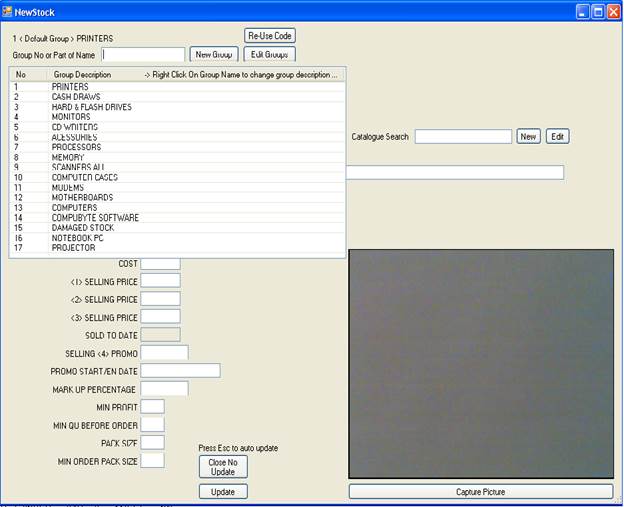
We are now going to enter in a new stock item into
the program. So we press the “F6” button or using your mouse, press the “New
Stock Item” button which is to the upper right of you good receiving window in
a brownish colour.
·
A new window labeled “New
Stock” opens up which contains the necessary fields requiring information
pertaining to your new stock item that you received
·
The first field is called current group which
requires a group number to be entered. Since this is the first time we are entering
stock no groups have been created so we click on the button labeled
“New Group” which is located next to the “current group” field.
·
After pressing the “New Group” button, a small
window shall appear asking for you to enter in the name of the group. You may
also enter a default markup to your group as long as
it’s corresponding to the format which it asks you to enter in.
·
For example we are naming the group “Shirts
Pringle” and for all items of the “Shirts Pringle” group we want a markup of 60 percent. Information to be entered in the
small window will be “Shirts Pringle [M1:60”. Press “enter” or click “OK”. We
have basically created a group named “Shirts Pringle” and all stock items
belonging to this group by default will have a 60 percent markup
from its cost which shall be automatically calculated by the program.
·
The group name and number shall be present at the
top of your screen. “Shirts Pringle”
shall be group number 1 because it is the first group created.
·
So in the “group” field we enter in the number 1
and press “enter” because we are using group number 1.
·
Our cursor is now shifted to the “size matrix”
field.
·
We currently do not have any size matrix stored on
the system so we are going to create a new size matrix.
·
We click on the “new matrix” button
·
A small window pops up again showing you the format
which to enter in the information of your size matrix and provides you with a
little example.
·
So for example the shirts we are receiving are
assorted in sizes from xxs to 4xl (extra extra small to 4extralarge. We will type it in the small
window as follows:” XXS/XS/S/M/L/XL/2XL/3XL/4XL”.
·
So basically we separate each size with the forward
slash (/).
·
Press enter or click the “OK” button. A new size
matrix is created and it is now available in the size matrix field located at
the top right of the screen.
·
Press enter to select the size matrix.
·
You cursor is now at the” reference / PLU code”
field: the code to be entered here is the code of the stock item which your
supplier applies to the product. For example Pringle shirts are supplied and
the code of the item in the invoice was PR1, in the “reference/PLU code “field
(textbox) enter in the code “PR1” (the code of reference to the product on the
invoice from your supplier) and press enter!
·
The cursor is now shifted at the next field”Description”. You are now required to give a
description of the stock item received.
·
In our example we are receiving Pringle shirts, we
are now going to enter in a description of the shirts we received. Example:
“Pringle Floral Shirts Yellow/Green “we type in the description and press
enter.
·
Next is the “Catalogue”. This field is basically to
further group the stock item so at catalogue we will type in “Floral for
example” and then press enter.
·
The cursor is now at the field “Supplier”, so here
you just enter in the name of the supplier of the stock received. Example “Ninian and Lester” supplied us with the shirts so at
supplier we type in “Ninian and Lester” (name of the
supplier) and press enter.
·
Your cursor now prompts at the “sizing” field. Here
basically the program is asking you if you would like to use sizing grid or
matrix with the stock item you are entering. In our example we have assorted
sizes so we type in “Y” for yes, if not then type “N” for no. Press enter
·
The program will now use the special parameters
which we entered in our sizing matrix that we created. Press enter
·
NB:
When inserting new stock or editing stock items (F6 or
F2). You can now right click
on Description or Special Parameters and get the following drop down menu:-
·
Link: Take from other items
- This allows you to reduce the units of another stock item when you selling
the current stock item. Example you have 50kg bottles of gas which you purchase
and refill 10kg bottles of gas – Every time a 10kg is sold the 50kg bottle will
be reduced by 10kg’s.
Link: Refill from other items – This allows a specific item to be replenished from other stock items
; if you have a case of cans and you want to allow the sale of single cans etc.
This will break up the full case into smaller units.
Link: Sell with other item - This allows you to link other codes; so when you sell this code other codes will also appear
to be sold with this item.
Calculate Units by Selling Price – This allows the user
to just insert the total price and the units will be worked out based on the
selling price of the item. Used for
items like fuel.
Scaled barcode items – Used for pre-printed
barcodes that are printed from weight scales. Parameter 169 must be set to use this.
Restrict/Unrestrict - Setting this option will restrict or allow the selling of a stock
item
Insert Cartons – You will be asked how many items are in a carton; used often in
stores selling tiles etc where the number of cartons
are to be worked out by the number of square meter age value.
Insert Weight – A handy feature for working out the mass (weight) of all items on the
document – could be used for security reasons or for delivery charges.
Allow / Disallow selling below cost – If sometimes you need to sell an item below its cost, use this
option.
Exclude Vat / Include Vat – Allows you to exempt a stock item from VAT (E.g. Bread)
- It now prompts at the
“re-order level” field. This field is to find out from you at what level
in quantity would you like the program to tell you to re-order stock of
this particular item.(In our case Pringle floral shirts). You can enter
nothing or whatever you wish your re-order level to be.
- Cost and selling price are
optional fields as well because later in the document you will be required
to enter in the info pertaining to those fields.
- At the lower right of the
document you will see a big square button which has a picture of a lady
using a camera and the button is titled Captured image. If you have a web
cam installed onto your machine you could click this button.
- By clicking this button you
can capture the image of the stock item and every time the stock item is
called up in the program an image of the item shall be at your display.
- You may now click the
“update” button situated at the bottom left of the screen and the “NewStock” window will close and all the information
that you entered is recorded.
o NB: If you click on Close no Update
button, all information entered will not be recorded, by pressing the Esc key
from your keyboard, you automatically update whatever was entered.
Back to the
main page
·
You are now at your main page and you will notice a
code that is highlighted has appeared in your “PLU” field/box. E.g. 1-1;1-2;
3-1;45-5
·
This code is in the format of (group number)-(stock
number).
·
The number to the left is the group number and the
number to the right is the stock item.
·
Example 1-1 was generated so 1 is the number of the
group and the 1 to the right is the stock entered into that group. Because it was
the first item entered into that group the number is 1. The next stock item
entered into that group will be number 2. So the reference “PLU” code for that
item will be 1-2. The second item in group 3 it will be 3-2 etc.
·
Press enter and it selects the “PLU” code and a
small good receiving window pops up asking you to enter in the cost of the
item, Units, markup and selling price. You will
notice that the markup in that window is exactly the
same you entered earlier. If you wish to continue with this markup
you press enter or click on the “ok” button.
·
Example 1-1
is Pringle floral shirts yellow and green and the cost is 100 rand.
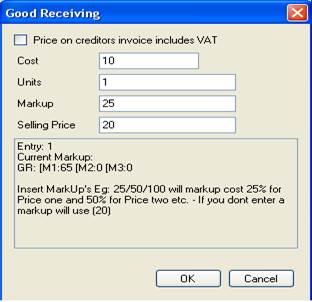
·
You type in cost, units and confirm selling price.100
and press “ok” button or press enter
·
Another window appears which automatically
has your markup entered. In this example we entered
the group with a 60 percent markup so the 60 percent markup is displayed. If you
wish to continue with this markup you press enter or
click on the “ok” button.
·
A tiny window pops up again which
has your selling price displayed i.e. the cost which
you entered plus the markup percentage. In this
example it was cost = 100 and markup = 60% so selling
price = 100 + 60% which is 160.Press the “ok” button or enter to continue if
the you are satisfied with the figures. In the example we changed the price to
159.99 then continued
·
A new window now opens which has the size grid
displayed with entry fields for each size. This size grid is from the size
matrix which we entered when filling in our new stock item. Therefore in this
example our size matrix was matrix number 1 which is
XXS/XS/S/M/L/XL/2XL/3XL/4XL so the grid in our window will have fields for
those sizes that it inherits from the size matrix i.e.
XXS/XS/S/M/L/XL/2XL/3XL/4XL.. E.g. we received XXS = 1; XS = 2; S = 2; M = 1; L
= 1; XL = 2 we would enter in the quantities in the appropriate field
pertaining to the size on the size grid.
·
Click on the “update” button which is at the bottom
left of the window and immediately you will see your selling price displayed
and all your details pertaining to the stock item displayed .You press enter
again
·
Now the discount box is flashing. The program is
basically asking you now if you received a discount from your supplier. In this
example we did not so we just press enter.
·
You will now have your cost value, your total
quantity (units) and your total cost displayed on the grid in front of you.
·
At the bottom Right of the screen you can see the
total value inclusive of vat will be displayed and just above in tiny bold
black text in between 2 brackets shall be the vat value.
·
You will now find yourself back to the “PLU” field.
Once you
back at “PLU” field
·
you have now completed an entry of your new stock
item
·
Should you wish to enter another new stock item
press the “F6” button on the keyboard or with your mouse click on the “New
Stock Item “button and follow the procedure again by selecting its group and
size matrix or creating a new group and matrix should the item not be part of
the same group .E.g. if your item of entry now is a trouser then create the new
group and the size matrix in correspondence to the sizes of which the new item
is received.
·
Example we received nivada
trousers so we now create a group Nivada Trousers and
it comes in 28/30/32/34 then we create a new size matrix which will be
automatically be size matrix 2 now and complete the remainder of the document
just like how you did it in the previous document. (Obviously price and cost
and other unique descriptions will differ but the process remains the same.
I received
stock which already exists on the system (not a new stock item)
·
If you now received for example more Pringle floral
shirts (green/yellow) you do not have to re-enter all the details again.
·
All you do is in your main window where it says PLU
(in red highlighted in yellow) you enter in the code of the item example 1-1 or
if you do not know the code type in any description of the item and it will
pick it up.
·
Example type in Pringle or shirt or “Pringle+Shirt+Floral and the system will pop up a small
table which contains all the items which have the description of “Pringle or
shirt or floral for you to choose the one you are looking for.etc.
·
Basically you search your item now because the
system already has knowledge about that item.
·
Example I type in Pringle+ Shirt and the list of pringle shirts appear. In this case I only have 1 item of pringle so I know which item it is. I select it by using my
arrows and hitting the enter button or by clicking on the item in the gird.
·
You will now be asked to enter in the cost price
again if the cost displayed is correct then you press enter or the “ok” to
continue or correct the price before continuing.
·
If you used sizing your sizing grid will appear
again and you enter in the quantities of the different sizes received. And
continue by clicking the “update” button or pressing enter till the “update
button is entered.
·
The program will now update the information
pertaining to the stock of the item in this case we received more Pringle
Floral shirts so it will add on the quantity received.
If I made an
error and editing or alteration is required
- On the main page of the goods receiving document we have a list of
the different stock items we received
- You see an entry number on the list the first item will be entry 1
and it entry 2 would be the next and the 3 and so on ….
- Type a “- (entry Number) “ in the “PLU” box to delete an entry from
the document or right click the item and select delete to delete the item.
- You type in a”- - (entry Number)”at the “PLU” box to edit the entry
of a particular item and press enter. Or right click the item on the
document and select edit using your mouse.
- It will now show you the “PLU” code of it.
- You now press “F2” on the keyboard or using your mouse you click
the “Edit Stock Item” button which appears in red to the Right hand side
of your screen/window.
- The window containing all the details of the stock item which you
initially entered will open.
- Make the necessary changes Example spelling was incorrect so
correct the spelling in the description.
- When the changes are complete click the “Update button” and your
changes shall be recorded and the document will be updated
Ending
the Good Receiving (GRN) document and printing barcode labels
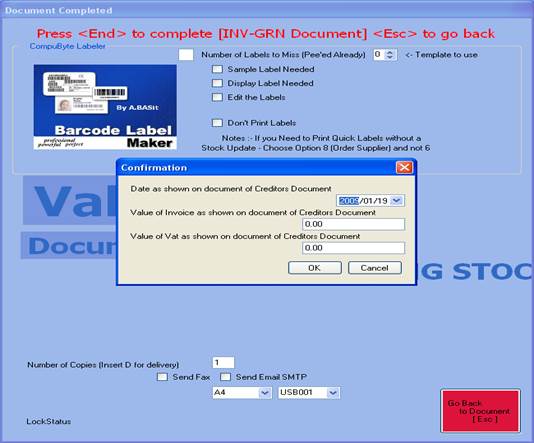
·
Now that you have entered in your stock and all the
information and would like to end of the document you should be at your “PLU” code (the red
text highlighted in yellow)
·
You press the “end “ button on your keyboard
·
A window on above pops up confirming the date,
value of invoice as shown on creditor document, and the value of Vat as show on
creditors document. If everything is correct click “ok” or press enter to
continue or make the necessary changes before continuing.
·
On the same window you will be asked for number of
copies to print for that document. Enter in the number of copies to printer
then hit enter on the keyboard.
·
By hitting the left arrow from the keyboard, it
will now ask you if you would like to print labels enter(Y) yes or (N) no and (S) if you wish to store. Type in (Y) and press the enter button on the keyboard.
·
A little window will appear asking you how many
spaces on the label sheet to skip?
·
If the page is new then just ignore and press enter
to continue or type in the amount of spaces used already so the program knows
from which part of the sheet to start printing before continuing.
·
Once continuing enter in a 1 if you require a
sample label and 1 again if you require a display label or hit enter to continue
if you don’t require them
·
The label program will open, hit enter to continue
·
A print preview is available and you press print.
·
Your barcode labels are now printed and goods are
ready for sale.
Printing
labels without adding stock in your system:
·
First
you can print labels when you are doing your good receiving (GRN), meaning
putting stock in your system. Or to just print items labels without adding
stock to your system, do the following.
·
Login to CompuByte program, insert your operator
number and password, and then press Enter. Or from any CompuByte window, press
the F4 key from your keyboard, it will take you to the main menu screen, and
choose Order with Supplier.
·
The following window appears to you.

·
Insert (-1), then press Ok. The system
automatically prompts you back to the Account details, then chooses Existing
Opening Stock and presses Enter twice. At the PLU code field, starts entering
items you want to print labels. Put in items cost and selling price on the
Order Creditor window that appears and click Ok or Enter.
·
When done, end the document as usual. Your cursor
now blink at “Number of copy”, put in how many copy you want, then press on the
left arrow from your keyboard, and on your right side of the screen put in a Y
to print labels and press Enter.
·
A label maker program will open and it will display
the label to be printed out.
·
Click on the close button at the top right, it will
take you to a page where you will be able to edit your label according to your
needs.
·
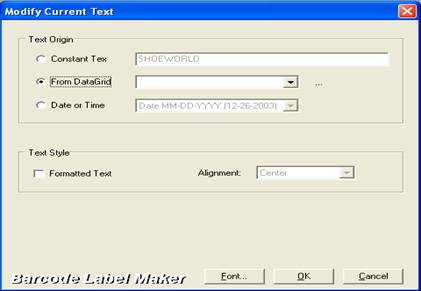
Let’s say you want to edit the company name on that
label. Put your cursor and click where company name is written, then
right-click and choose more properties and select “From DataGrid”
radio button, so that it takes information from your stock system, then choose
what item you want to be displayed on your labels. Then click on the Ok button.
·
Then save and print your labels.
-Insert a -1 on the textbox field and press enter, for Quick Labels
-Click on Existing Opening Stock and
press enter, you'll see a cursor blinking on PLU, insert the PLU code that you
know its in stock codes and press enter, an Order
Creditor window will appear press enter several time until you get to sizing
information window.
-Insert number of item you want to order
and update, press enter to accept the price
-End the document by pressing the End key
on your keyboard.
Barcode Label Maker- Preview window will appear,
click the Close button to close (on your Top right hand side on your screen).
-Barcode Label Maker 4.0[\programs\label.blf] window will be on your screen, and then you'll
be able to start to edit your label.
-Now you can right-click on the text or barcode on
your Label and click More Properties, and edit your text there, align your
text. Etc
-When your
done with editing your label, you'll then save it: Click on File then click on
Save AS, it will give you another window then click save, to save your label)
If you are in any window on the program and you
want to work on any document
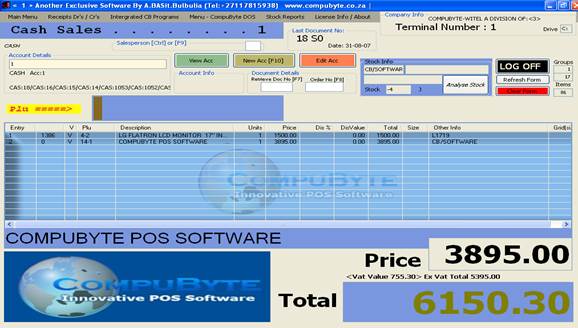
·
When logging in to the CompuByte program by default
the “cash sales” option is available to you since it is option number 1. So we
can just press enter or the number 1 button on the keyboard.
·
On first time usage you will be reminded by the
system that this is a new installation and the program will automatically
create the “Cash Sales “and “lay buy” accounts for you
·
All you need
to do is to click on the update button when this is being done.
·
Your cursor will now move onto the account number
and all you do is press enter for cash sales(This account was created for you
by the system for doing cash sales)
·
Your cursor will now be prompting at the “PLU”
Flash box. (Basically the program is now asking for the code of the stock item
which is to be sold because we are in the “cash sales” document).
·
Once we inserted stock into the computer barcodes
were created for those stock items so using our scanner we scan the barcode
label of the item. For example we scanned our Pringle shirt and now you will
see that 1-1 is the code that appears in the “PLU” field of the program. The
stock item that we scanned (in this case Pringle floral shirts). Normally when
using the scanner to scan the barcode, the size grid window does not appear,
because the barcode already provides the size information of the stock item. In
our case, we typed in the computer generated code i.e. 1-1 for our Pringle
Floral shirts, so the grid appeared for us to select the size being sold. So if
using the keyboard, the size grid window pops up, simply enter
the size sold in the “size sold” field. By doing this the system does not just
capture the information of your pricing of the item but also a record of the
size being sold and the quantity of each size remaining are kept up to date.
·
After entering the item which you are selling the
PLU flash box will display and prompt for the price, units and discount towards
the item being sold
·
If you are satisfied with the default set values of
pricing, discount, and quantities you just press enter to continue or type in
the necessary changes in the appropriate fields when being prompt at.
·
You will notice that the item which you scanned or
entered in for sale is now recorded on the table and your cursor is back to
your “PLU” code. This means that the record of the item you sold is captured
and the program is ready to enter in the next stock item to be sold (If there
are any).
·
If you have another item to sale you may enter in
the code or scan the barcode of the item and you may continue the process until
you have captured all your items that are to be sold in this transaction.
Editing
and deleting my entries in the cash sales document
- To edit any entries in the cash sales document we would apply the
same procedure as we did in our goods receiving document.
- We both right click the item and select the edit option or we use
the - - (entry number) format in the “PLU” code box.
- To delete any of the entries we simply right click the entry and
select the delete option or in the “PLU” box, we use the – (entry Number)
format just like in the goods receiving option.
Ending
cash sale document and printing the slip

·
You now have entered in all the items that you are selling
to the customer. So the cursor is flashing at your “PLU” code.
·
Press the “End” key from the keyboard to end the
document
·
A window will now open up and you will enter in the
amount received.
·
You are also given the option of entering the different
amounts received and the means that which they were received i.e. via cash;
credit card or cheque. For example a customer is to pay 150 and he pays 100 by
cash then the program will auto automatically display the 50 balance in your
next fields i.e. credit card or cheque.
·
Once your entry of payment is complete you press
the End key again and the system will prompt you to enter in the number of
copies to be printed. You enter in the number required and press the “End” key,
a print preview shall appear, click on “Print”.
·
You have now completed your cash sale.
- To make an account sale, from wherever window you are, press F4 key
to take you to the main menu, then use your arrows to scroll through to
the account sales which is (Block 2) or we press the num
2 button on the keyboard.
- Now that we are in the account sales document you will see the
account identity or reference field available.
- In this situation we are going to create a new account because
there are no account holders yet on our system
- Click on the “New Acc” button which is a brown button
- After pressing this button a new window opens which is a form to
enter in the details or the new account holder.

- you complete the form by entering the details and proceed by
clicking the update button
- Now you shall notice that the account you created is allocated an
account number.
- you select the account in the account reference field
- Now the system prompts at the “PLU” box for you to scan your item
or enter in the item being sold.
- You will now proceed like a cash sale and enter in or scan all the
items being sold to the particular account holder.
- Editing and deletion of entries are the same here as it is in the
cash sales and goods receiving documents.
- Press the “End “ key from the keyboard to end the document and your
invoice printing options are available to you and you can simply decide
how many copies are to be printed.
- Now if you go to “Account Sales” select the account you wish to
view by either typing the name or the account number, and click the “View Acc” button. You will get a view of the information
pertaining to the account selected and the amount owing.
Editing
an account details
·
Select the account in the account reference field.
·
Click the “edit Acc”
button (red button).
·
The account details window will open up and you may
edit the details pertaining to the account holder, then press on the Update
button.
From any program window, press the F4 key to take
to the main menu.
- To select the Lay-Buy option (Block 5), you press the number 4
button on your keyboard or you scroll through using your arrows and press
“Enter” on Lay-Buys.

- The Lay-Buy information window above opens up as soon as the lay-buy
option is selected. You have five options to choose from, like: press
“enter” for new lay-buy;”-1” for new lay-buy using existing account, or to
just insert a lay-buy number.
·
(This
is to be done when you are using an existing lay-buy for your transaction and 3
to delete a lay-buy)
·
NB:
- following the customer’s name. E.g. -Henry, will do the name search.
·
In
our case we are using the laybuy option for the first
time and there are no laybuy accounts created so we
press “enter” or click the “ok” button to create a new lay-buy.
- Now another window pops up which requires you to enter in the
personal details of the new laybuy customer.
- Example Sam is the name of the customer so, at the name field enter
in Sam but leave a space, then enter in his telephone/cell number next to
the name.(This is done in case you have 50 Sams
to search for, they will all differ from each other with the telephone
number next to it, which is unique, none will be the same)
- Fill in all the details and complete the form by clicking the
“update” button.
- Immediately now an account number for Sam is created (The new laybuy customer), press enter to select the account.
- Now the cursor is prompting at the “PLU” box. (The system is asking
or waiting for you to enter the item which is to be laybuyed
by the customer (Sam in this example).
- Either enter in the code or scan the barcode of the stock item to
inform the system.
- E.g. say Sam is laybuying item 2-1. After
the item is scanned or the code is entered the record of the item will be
in your list just like how it was in cash and account sales.
- Your cursor will be back at your “PLU” code box. If he is laybuying more than one item, then you repeat the
process of entering the code or scanning the barcode to capture the
information of the item being laybuyed.
- To end the document we press the “End“key
on the keyboard. When our cursor is prompting at the “PLU” code field.
- After pressing the “End “button a small window pops up, which asks
you to enter how much the customer is paying towards the laybuy. Example the item costs R299-99 and he is
paying R50, fill in the amount being paid, in this case it is R50 and
press “Enter” button or using your mouse click on Ok to continue.
- Now a window will open which basically requires you to enter the
method of payment i.e. cash; credit card or cheque etc
just like in cash and account sales.
- Complete the form and enter the amount. In our example R50 paid in
cash and press the “end” button.
- Your cursor will now be shifted to the bottom of the page asking
you how many copies of the slip to be printed, usually it is 2 copies. One
for you and one for the customer.
- Enter in how many copies and press the “End “key. Now the lay-buy
has been entered in correctly and your copies will be printed.
Updating
a lay-buy using an existing laybuy account
E.g.: Sam has
now returned and wants to add payment to his existing lay-buy or complete the
payment and take his goods. His laybuy number is
number 1.
- Again you select the laybuy option using
your arrow keys or just entering in the number 4
- As soon as the laybuy option is selected,
the Lay-Buy information window appears. You will now be asked to press
“enter” for new laybuy;”1” for new laybuy using
existing account or to just enter or scan a laybuy
number (This is to be done when you are using an existing laybuy for your transaction.)
- Now we are using an existing lay-buy for this transaction, so enter
in the laybuy number in this example it is laybuy number 1. Put in number 1, and press “Enter” or
click the ok” button using the mouse.
- Immediately the information about Sam’s laybuy
will be displayed on the table, when he paid, how much and what he paid
for etc will be at your display.
- Press the “End” button to continue
- Now a small window will appear again and ask you how much is the
customer paying towards the laybuy. (Note: The
little window will display the total amount owing or balance of the laybuy and you just have to enter in the amount paying
or if the amount paying is the equivalent to the total owing then just
press “Enter” or click on the “ok” button using your mouse to continue.
- Now again a window will open
which basically requires you to enter the method of payment i.e. cash;
credit card or cheque etc just like in cash and
account sales.
- Fill in the necessary details and press the “End” button to end the
document
- If Sam has paid the full lay-buy amount, enter the fully paid laybuy number, and then the small window will appear
saying that this laybuy or deposit is fully
paid.
Delete a
lay-buy
Let’s say Sam has completed his lay-buy payment, and his stock item is
already taken so you wish to delete the laybuy from
the system.
- When selecting the laybuy option by
pressing F4 key on your keyboard, then press 4 or using your arrows the
little window opens up again As soon as the laybuy
option is selected, the Lay-Buy information window appears.
- Enter in the “-3 “ and press
“Enter or click on “Ok”
- You will now be asked to enter in the laybuy
number or scan in the laybuy number that you
wish to delete. The following window will appear

- Enter in the number or scan it in and press” enter” using the
keyboard or click on “ok” using the mouse.
- The system will now show you the laybuy
details and a the bellow small window will appear asking you to press
“enter” to keep money paid as credit or type in <1> to delete 10%
(ten percent) of the paid value. Because this is what happens when
somebody comes in to cancel a lay-buy.

CREDIT
NOTE: Cash & Account
Cash
Sales: (“Cash Refund” is done when you take money from the
till for a customer who paid cash & returning goods).
- Press F4 from your keyboard to take you to
the main menu, and select cash refund. Type in your access code, then
Press Enter.

The following option will be displayed for you.
Let’s assume that we have the invoice number from the customer.
- Insert the document number (invoice
number) from original document and Press Enter to get the list of items.
- Verify
that all items are on the list and press the End key from your keyboard
to end the credit-note.
- Press
enter & End the document, credit is passed for that particular
document.
·
Note: An item that has been credited before
cannot be credited again.
·
Account Sale
(All your accounts customers):
·
Note: By pressing (+++) on the Account details field, you can get all your customer
names listed. Follow the above process with cash refund to pass a credit to an
account sale customer.
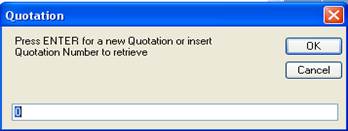
- The above window appears to when select quotation after login into
the CompuByte. Pres enter for a new quotation or
just insert the quotation number if you know it.
- Press Enter because we doing a new quotation. Select New Account
from the quotation window.

- The window above will appear for you insert
the customer information. When done, click on Update, the program takes
you to PLU field, start scanning your items.
- When finished press the End key from your
keyboard.
·
Note:
The quotation document doesn’t take out your stock from the system like cash or
an account sale.
DEBIT NOTES- RETURNING GOOD TO SUPPLIER:
From any CompuByte program window, always press the
F4 key to take you to the main menu. Select order Good Returning (block 7).
Select which supplier you returning goods to, and press Enter. At the PLU
prompt put in or scan the item(s). You will notice that the total at the bottom
of the window will display in red with an (-) sign. It is the amount the
supplier is supposed to give back to you at the supplier cost price. After
listing your all items to be returned, end the document by pressing the End key
from the keyboard. The end document window appears with the following question
which is optional.

Put in number of copies to print. You also have a
choice to print labels or not, your choice. Press Enter for
next, document or next sale. Your debit note is done.
Remember, Order with also allow you to print your
labels without adding stock in your system when you just put a (-1), then
Enter.
Whenever you are in the program, just press the F4
key to take you to the main menu and select order with supplier (block 8). The
order with supplier window opens with the following options.
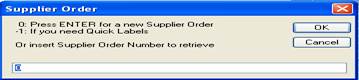
Press Enter because you are ordering from a
supplier. On the order with supplier form select the supplier you want to place
an order with, press Enter. Start scanning the items to order, when finished pres the End key. The window looking like window below
appears to put the order delivery date. Press Ok. Send a fax or an email to
supplier and print your order.
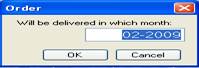
Later on when your order get delivered, you need to
put these items in stock.
Press F4 key to take you from wherever window you
are in the program to the main menu screen, and select “Order with supplier”,
and put in the order number to retrieve and press Enter. A window like this
appears.

Put <0> to use items in the order document to
generate another document, and press Enter.
If you haven’t received the whole order, only 20%
is delivered to you, you will get the following window:

If you received everything, click on No. It will
take you to the main menu with a message written in red: Convert order creditor to. Select Good Receiving. Same
items will be displayed on the item list, press the End key. Confirm the date,
amount and vat amount as shown on the creditor invoice, click Ok and print one copy
of the good receiving (GRN) document.
SALES ANALYSIS
Innovative POS Reports.
The first set of report is found in your main menu.
From there, you get your Sales Analysis report which gives you a summary of the
sales done for the day. Details analysis gives you each every item sold. You
also get View Sales/ Stock by multiple terminals by
date, which summarizes all your sales as well as a more details inside
of all transactions that has occurred during the day.
Let’s click on View Sales/
Stock by multiple terminals by date.
→ Put in your access code. A Select Date window
will appears for you to choose the date you want to view the sales reports, and
then click on OK. This gives you a window containing a summary of sales based
on the number of company and terminals you have.
→ move your bar up and down to view the different total.
→On your bottom right click on show graph to see sales made for a
particular period and time. You can also view your totals by clicking on View totals and it will give you a brief summary of
your total in a horizontal form.
Once you close this report you can get a stock
analysis report. This will further analyze all your
sales. On this window you can view of particular groups and what value of sale
you have done for each one of them.
→ Form the Main menu; you can get a Day-End
report which is generated at the end of each day. Basically it is a cash-up for
the day’s sales.
→ The arrow on the right give you a Month-End report generated at the end of each month.
It will basically age your different Debtors and Creditors as well as your
stock items.
→ Access code usage is another report which gives all access code used
during processing.
→ View audit file will give you an audit
trail of all document processed and whether these document were processed
successfully. If there any profit discrepancy or any error in processing, this
audit file will basically highlight those for you as well.
REPORT.NET:
STOCK REPORT
The second set of report is the Stock Reports, which basically give a report detailing
your various stock quantities and values.
→ Click on Stock report, put in your access code and then you can choose
either all your groups or specify from which group to which group you want to
view your various stock items.
→ Let’s
say you choose from group 1 to 2, then click on the Continue button. To
basically see how much units you’ve got, cost and total and your group description will also be
displayed. When done you can load your stock grid, you can even display your
images if any, which will be displayed on the right-hand side of the grid.
→ You can then also load a crystal report of
your choice. Usually you should choose a crystal report that is for this
particular report. In this case, it will be Stock-Simple
Cost Selling Units.rpt.
You open the report, re-load it. After the report has been
loaded you can basically see your stock analysis.
→ Click on View Crystal, in there you can see
your grand total as well as your stock. A Crystal window open, it gives you a
better design. From there you can print any item group separately by Clicking
on ‘Print Grid” button, or save it on an Excel
format doc, by Clicking on “Save CSV”.
REPORT.NET
The third set of report is the report menu which
will basically has the other report that you will require on the system. Like
lay-buy, print statements, print remittances and transaction cash and account
(Dr’s) report.
→ Let’s
look at the Transaction Cash and Account (Dr’s) Report.
Click on it, and put in your access code.
→ Choose from which date to which date you want the report for. Click on
show cost then Ok.
→ Choose Yes to
merge transactions. This will show all the transactions made for the day.
→ Click on Enlarge Analysis to view the
various documents you sold, your stock analysis and your profit analysis.
→ Click on Invoices not in sequence button
to view any document out of sequence. Close the report.
→ From the Report menu, you can also go to Cash
Book, put in your access code to see all the cash items that were
processed. Choose the specific date, it will show you what were the items
processed.
→ Click on Post Entries to post further
entries into the cash book or click on Enlarge Analysis to view your cash book and analyze according to the various categories.
From the report menu you can get other various
reports according to what you inquire.
REPORT.NET:
DEBTORS AGE REPORT.
How to view
what each customer owes you
From any CompuByte program window.
From the Menu bar, go to Report
and select Debtors age Reports, put in your
access code.
→ Select Start and End Company, then press OK.
A report generator window will appear. There you can exactly know how much each
customer owes you under the uncovered column.
→ Click on View age Details to a Date
button, put in the desired date. This will give you the total balance. You can
also save this report to an Excel, Word or Notepad document by clicking on the
save analysis button.
REPORT.NET:
PRINT STATEMENTS.
Print
Debtors Statements
From any CompuByte program window.
·
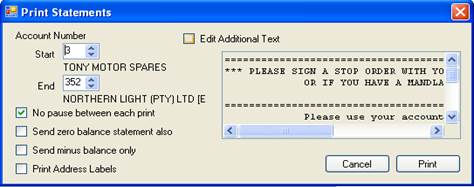
→ For more than one customer. Go to Reports
and choose Print Statements. Put in your
supervisor access code, and press Enter.
→ Select account number to Start and
account number to End.
→ Put a tick on the” No pause
between each print” checkbox, your choice, and Edit additional info if
you like. Then click on Print.
·
If you only
need one customer’s statement, go to Account Sale, select customer to print
statement for.
→Click on View account, click Print statements, specify the date, then press the OK button, put in the number of copies to print then
press Enter.
REPORT.NET:
CASH BOOK.
How to
correct information on your cash book
From any CompuByte program window.
→ from the Menu bar → go to Report and
choose Cash book. → put in your
Access Code, then type in your bank number (the account that you use for
payments, usually 1).
→ Select the appropriate date. A report generator window will open.
→ Select the row(s) that need changes, and click on “edit cash book” at the bottom of the report generator window.
→ Make all correct changes and click on “Save cash book” before closing the window. You just edited your
cash book.
REPORT.NET:
View if customers received invoices sent via e-mail:
All emails are now logged; so you can see emails
successfully/unsuccessfully sent (in red). Email Log is viewable in:
→ Reports, from the menu bar → Email Log
(E-mail Setting). You can also edit your mail server info (POP etc).
STOCK
TAKE MADE EASY:
If you taking stock, from the CompuByte program.
→ Click on your Stock Reports. Put in your access code. The following window will appear.

If you are taking stock from a specific group, you
can then lock that group so that any other terminals selling that item group
you are busy with will not be able do so. When done
→ Click on Capture stock, which offer three different methods to capture
your stock. The first method is just for you to scan all items in store and do
an Update & Analysis.
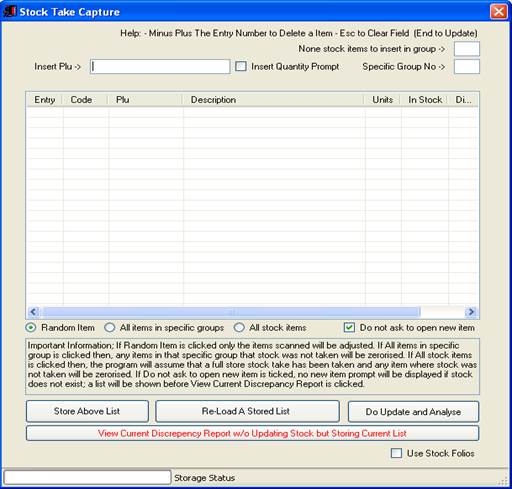
The other
method is to do specific groups. If that the case then you only take stock in
that specific groups.
→ Store the group, do stock on all group, by scanning your items, when
finished then do an Update & Analysis, per group.
The last method is used in a case where you using
multiple terminals to capture stock, it called Stock
Folio Matrix. With this method you don’t need to choose any specific groups.
You just need to start scanning all groups, then do a merger of those groups
and then do a stock update.
→ Scan stock item, which will populate a list item. That list shows the
size taken in stock and the differences. If difference says: updating it means
that there are still stock on that size and it is being updating, and still
show the difference in the meantime in the size. If you put/scan a size item
which is already on your list, the system will automatically update that
particular size.
→ Click on View Current Discrepancy Report
without Updating Stock but Storing Current list, to view your current
discrepancy, and give it a temporary storage number, e.g.
1. This will open the report either in Excel or in Notepad. In Excel it
will give you a form that you can print with the value, cost and difference of
your stock.
→ Close Excel and come back to your Stock Take form.
→ Click on Do Update
& Analysis it will take all items on the list, the update and
finalize your stock. This is how easy it is to do stock take using the
CompuByte system.
RECEIPTING
ACCOUNT: Debtors and Creditor Payments
Always start from the main menu screen. So from
wherever window you are working on, press the F4
key and select account sale to access your debtors (people who buy from you).
From your list of account choose any of them, the account info area will show
you exactly whether that customer owes you or not, click on Pay Account button next to Edit Account and put in
your access code. A receipt form appears with the current, 30 days, 90 days 120
days and total amount the customer owes. The cursor is clicking at the payment
field. You put in there, whether the customer is paying the whole amount or put
in the amount he/she is paying.
E.g. customer Paul owes you R5000.00, but only
wants to pay R2500.00. So on the payment fields put in 2500.00, press Enter,
press Enter on Discount value and Discount percentage and Vat number. On the
next field which indicate the method of payment: Leave it empty if you pay
cash, put in C if paying with a Credit card or insert the check number.
Press Enter until it ask you if you finished your
receipt, then the below window appears for you to use automatic period
deduction, and click on yes
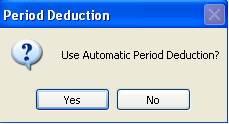
Verify and
accept the balance by clicking on Yes. Then print your customer receipt.
BILL OF MATERIALS – For manufacturing companies or
Take-aways !
The bill of materials is activated from the Login Screen when you choose
Quick Setup – New installations then choose Select store type (take-aways). This is only done when you have set up a new
installation. Usually when you purchase the software we will set up this for
you.
To insert your bill of materials you go into your CompuByte program and
choose stock reports and below this you will find Recipe – Bill of Material
Maintenance. You choose this option and you will see :-

You then insert the Plu or part of the search
description of the finished product first.
All finished products are from groups two onwards. Once you found or
inserted the finished product you then insert the ingredients for that finished
product by choosing items from group one (which is always the raw materials group).
Each time you insert a raw material item for the finished product you will be
asked to insert the quantity used to manufacture or produce that product. Once
you finished inserting all the raw materials (items from group one) you click
on next menu item and update.
If you need to add a new raw material of finished product you can do so from
the goods receiving program or from choosing NEW STOCK ITEM from this
screen. Similarly you can EDIT STOCK
directly from this screen.
Please note there are two ways in which the program updates the stocks
of a finished product. The one way which is usually done in take-aways is that when you sell the finished product the raw
materials get updated and the finished product stock is reduced by the quantity
sold. The other way is by setting parameter 191
[MAN*A*] Enter 1 if you are using the manufacturing
module and are using INSERT MANUFACTURED GOODS in GOODS RECEIVING PROGRAM to
disable removing stock in Invoicing (avoids duplication)
If this
parameter is set to one you will have to create an account in Goods Receiving
which is called INSERT MANUFACTURED GOODS. When the product is manufactured you
go to this account and insert the number of items that were manufactured – this
will then increase your stock for that item manufactured and reduce all the raw
materials accordingly.
PARAMETERS-
CUSTOMISING THE SOFTWARE
Parameters are set in advance in the CompuByte
innovative point of sale. Parameters are basically a way of customizing the
software according to what need to be done on your business. Cash sale is the
most processed transaction on a daily basis for business. While doing your cash
sale you may want to monitor everything that happening in the cash till.
*Cash
Monitoring using a webcam:
Cash monitoring is basically checking what is going
on with the cash in a till.
NB: you need to
have a webcam, that will be facing your till point.
First you must plug in your webcam at the back of
your computer and install the driver (CD that comes with the webcam).
Then from your desktop, you right-click and open
the CompuByte innovative program. A login
screen will appear.
Click on the Parameters button and put in your
access code.
In the search field type in: webcam.
All the parameters about using a webcam will be
displayed below in the information list.
in there, select the appropriate parameter for cash
monitoring, which is parameters 267, that
instructs you to insert 1 on the data field.
When done close that window, a small window will appear saying that "all
terminal parameters info successfully stored", click on Ok
Now login to your program, do your work as usual,
and capture pictures.
To view the images captured, go to reports and
select "cash monitoring", put in your access code, correct date,
start and end terminal number, and click on OK.
A report generator window will appear. You will now
compare the total cash, total receipt and all payouts
from your till.
Below is a list of all the parameters:-
1.
[STA-P] Enter 1 if Compu-byte
Stationery is being used in Point of Sale Program or 0 if not (If you using [VIEW-S.EXE] the standalone
version on a terminal point enter V in data)
2.
[STA-P] Enter 1 if Plain A4 (66
Column) Stationery is being used in Point of Sale Program or 0 if not.( Also
Enter 1 if you are using pre-printed Invoices or if you customised your
stationery using I-STA.BAS (NB Requires a compile every time I-STA.BAS is
changed)
3.
[STA-P] Enter 1 if A4 (Laser Paper)
Stationery is being used in Point of Sale or 0 if not.(DONT FORGET TO ALSO
ENTER 1 IN ENTRY 2)
4.
[STA-P] Enter 1 if Cash Reg Rolls is being used in Point of Sale or 0 if not.
(Insert a * next to the one(1) and the spaces u need to tab if you using a
laser or inkjet printer with A4 paper cut into 4 sheets) Eg
1*22 [If you have an image called
logo-s.jpg scanned and saved in \programs directory add a @ in the data field
so that this will display on the printer instead of your normal Company info]
5.
[STA-P] Enter <1> if Cash Reg Rolls is being used in Point of Sale with Citizen
printer <2> with Epson or Citizen Thermal (CBM230/231) (Both having
cutters) or 0 if not. <3> fo Star printers
(SP300)
6.
[FAST] Enter 1 if Print out is
immediate as input is made (For cash reg roles only)
or 0 to start printing only when document has ended
7.
[FAST] Enter 1 to suppress the
salesperson prompt or 0 not to.
8.
[FAST] Enter 1 to suppress the Order
prompt in Cash Sales or 0 not to.
9.
[FAST] Enter 1 to suppress the Order
prompt in Cash Sales and Account Sales or 0 not to.
10.
[DIS] [FAST] Enter 1 to suppress
Discount prompt in Point of Sale or 0 not to.
11.
[FAST] Enter 1 to accept a quantity of
one and selling price from stock without asking user to confirm price - however
by pressing the F5 KEY you could change the quantity and selling price.
12.
[FAST] Enter 1 to accept selling price
from stock without asking user to confirm price - however by pressing the F5
KEY you could change the selling price.
13.
Not Used !
14.
[DRAW] *New >> Only one parameter for Draw Opening *** Insert [P if RJ
cable from draw is connected to printer [C? If connected to Serial Port (Posiflex) Eg: Enter [C2. [S for
special (old .net) if
draw is connected to COM2 --- If you using old draws just enter the sequence
for these draws here >> Available sequences are:- On Com2 insert 0763.64.191.300000 --- On Com1
1019.64.191.300000 - On Com3 1003.64.191.300000 - On very old draws like Rite
Price/Top Stores insert 1020.01.254.300000
---- Important the 300000 can be reduced or increased depending on the
speed of your PC.
15.
Not Used !
16.
Insert an Access Code to Open a New
Debtors Account or leave blank to allow opening without access (A/W) Note:-Insert
** and Level access for .Net version Eg. **7
17.
Not Used !
18.
[*A*] Enter Sold @ Code (if any) that
is inserted after ** in any stock description to change price on Point of Sale Eg: if your coding here is JABDEFGHI and if in your stock
description you have the following **ABII then when you sell this item the
price of 12.99 will be used - Note if you using this parameter you must make
sure you insert all values for decimal; so if the price you needed was 10 then
you must insert AJJJ when using this your price will default always to the
coded price ; by pressing F5 key before entering the PLU code you can change
the price. Please also note you must insert a coding similar to your cost
coding; in this example 0=J A=1 B=2 C=3 D=4 etc . . So in data you would
insert JABCDEFGHI
19.
Enter COM IN WHICH Pole Display is
used or 0 if not
20.
[DEB] Enter a Access code for Debtors
to Allow overdue / Exceed Limit / Exceed Terms / Adverse Info ==> or just press enter if you don't require a
Access code.Note:-Insert ** and Level access for .Net
version Eg.
**7
21.
[DEB] Enter a Access code to Correct a
Debtors Account Details excluding balance values or just press enter if you
don't require a Access code Note:-Insert ** and Level access for .Net version Eg. **7
22.
[DEB] Enter a
Access code to Correct a Debtors Account Details including balance values or
just press enter if you don't require a Access code.
23.
[DEB] [STA-DEB] Stationery used
Debtors - <0> = Compu-Byte <1> = A4 Plain <2> = A4 Laser
(See 141 for custom)
24.
[DEB] [STA=DEB] Stationery used
Creditors - <0> = Compu-Byte
<1> = A4 Plain <2> = A4 Laser
25.
[DEB] Enter a
Access code to Pass Credit Notes or just press enter if you don't require a
Access code. - Note:-Insert ** and Level access for .Net version Eg. **10
26.
[MINUS] Enter a Managers Access code
to be able to enter a minus quantity - or VALUE or CASH up TILL - OR just press enter
if you don't require a Access code.
27.
[SELL] Enter a
Access code to be able to change selling prices or just press enter if you
don't require a Access code. (see also para no: 115) Insert [1:???? [2:???? [3:???? if you need a seperate code for each selling price - NB: Replace question
marks with 4 digit access code Example: [2:7866 Note:-Insert ** and Level
access for .Net version Eg. **7
28.
[SELL] Enter a
Access code to be able to sell below cost or sell below set discount margins OR
PERCENTAGES or allow access for overdue accounts just press enter if you don't
require a Access code.
29.
[SELL] Enter which documents must use
the 2nd Selling price (Eg. *JOB *QUO *INV will use
2nd price for these documents
30.
[SELL] Enter a MINIMUM PROFIT
PERCENTAGE to cost to be made on any sale before an access code is needed
Note:-Insert ** and Level access for .Net version Eg. **7
31.
Enter The default
selling Mark-up Percentage FOR SELLING PRICE <1> from cost or 0 if no
default is needed.
32.
Enter 1 to use Mark-up Percentage from
cost from last insertion or 0 if no default is needed.[SELL]
33.
Enter from which terminal onwards in
Point of Sale must Second price be used as a default
price or Press 0 if not required.
34.
Enter 1 if items on cash register slip
is duplicated without a price to specific printers in kitchen/soda fountain/bar
etc (USE <P2 IN GROUP DESCRIPTION or <P2 IN
DESCRIPTION TO SEND TO SPECIFIC PRINTER 2 INDICATES PORT)
35.
[STA-G] Enter 1 if Compu-byte
Stationery is being used in Goods Receiving Program or 0 if not.
36.
[STA-G] Enter 1 if Plain A4 (66
Column) Stationery is being used in Goods Receiving Program or 0 if not.
(Insert NG next to 1 if no pictures to be printed on grn's)
37.
[STA-G] Enter 1 if A4 (Laser Paper)
Stationery is being used in Goods Receiving Program or 0 if not.(DONT FORGRT TO
ALSO ENTER 1 IN ENTRY 36)
38.
[STA-G] Enter 1 if Cash Reg Rolls is being used in Goods Receiving Program - If Cash
roles used with Citizen with Cutter insert 2
39.
Insert 2 if you need to store home
cost and foreign cost (when using `) in goods receiving (Only TransAfrica) - stk-par. field 11
must be set to 1100 and no sizing option must be activated
40.
[COST*A*] Enter 1 if cost is not to be
Rationalised or Enter to Rationalise .[SELL]
41.
[BRANCH] Enter 1 You need a branch
export file when Invoicing or press Enter if not needed
42.
[LAB] Enter Default Lables being used for pricing in Goods Receiving
Program - Example 4 for 4 IN A ROW DOT
MATRIX / 4L FOR FOUR IN A ROW LASER A4 / B FOR 3 IN A ROW BAR CODED / 4LX FOR 4
IN A ROW LASER MULTIPLIED BY TWO - (S
FOR SHELF LABLES) - Enter N for All new Labeller program (add a slash and percenatge value to increase cost by for coded cost Eg N /24 will use New labeler and
add 24% to cost on cost code only for label)
43.
Enter The
default selling Mark-up Percentage FOR SELLING PRICE <2> from cost or 0
if no default is needed.
44.
Enter 1 to ignore document sequence
checking in transaction files or just press Enter to do checking
45.
Enter 1 If export FILES are used when
invoicing and same computer generated codes (2-1 / 2-15 Etc)
are not exported otherwise Just press Enter to use codes.
46.
Enter 1 if Selling Price should appear
on GRN's - Receiving Stock
47.
Customise POS Screen : Insert menu
items to display on Main Page from Other choices Example: 4/6/7/ will display Account Sales
and Enter/Retrive Job Cards etc
on Main Menu You can also REMOVE laybyes from Main
menu by inserting a \ (back slash) Use a 1 to insert a seperater
line - Example of combined choice
1/4/5/1/6/7/1/8/1/9 \ (Set para 64
also if you use a particular document often Eg Job
Cards AND para 48/49)
48.
Enter Default Bar on which CHOICE is
to be in CHOOSE Document to process in POS menu
1=JOB CARDS 2=PICKING SLIPS 3=QUOTES 4=ORDER FROM CUTOMERS
5=DEPOSITS (SET PARA 49 ALSO)
49.
Enter Default Bar on which CHOICE is
to be in CHOOSE Document to retrieve in POS menu 1=CASH 2=INVOICE 3=DEPOSIT 4=QUOTES 5=SALES
ORDERS 6=PICKING SLIPS 7=JOB CARDS 8=CREDIT NOTES 9=TEMP DOCUMENTS (SET PARA 48
ALSO)
50.
Enter The
default selling Mark-up Percentage FOR SELLING PRICE <3> from cost or 0
if no default is needed.
51.
Insert decimal structure for quantity
using ####.## or leave blank for default structure no decimal points for
quantity (WILL NOT ALLOW AT UNITS ANY DECIMAL POINTS IN POS)
52.
Enter 1 if you have a restaurant and
you need to monitor tables or leave blank if not
53.
Enter a Message to appear on bottom of
Cash and Invoice documents or leave blank to insert 15% handling fee on returns
- STRICTLY NO REFUNDS - [Very important : don't use commas in message]
54.
[STA Enter 1 if Cash register roles
are used and you need to print stock codes on the slip - INSERT a * next to the
1 if you need two lines also make sure you set decimals in para 51
55.
Enter Maximum Global Discount in Point
of Sale Allowed - Use only if you need to give a discount at the end of a
document in Point of Sale
56.
[STA-B] Enter 1 if A4 (Laser Paper)
Stationery is being used to print Bank Statements or 0 if not.
57.
Enter 1 if Cheque printing is DONE
USING A LASER PRINTER
or 0 if not. Please note all entries will be stored in file
called cheques before printing
58.
If you need a secure input for
Database customers insert the 1st few digits to utilise before a database
number is inserted (A/W)
59.
[STA-P] Enter 1 to use Compu-byte
Stationery but with companies own details pre-printed
60.
Enter Maximum number of copies allowed
on print out (POINT OF SALE AND GRN's)
61.
[*A*] Enter number of Terminals on
this network or 0 if single user. - Each terminal requires a license from
CompuByte - SMS your requirements to +27(824104777) form South Africa 082410477
62.
Enter 1 if you need to insert (via
input) Invoice/Cash Sale and Receipt numbers in POS (Point of Sale) and not to
AUTO generate
63.
Enter Maximum Discount % Allowed in POS
System Note:-Insert ** and Level access for .Net version Eg. **7
64.
Enter Default Bar Name on CHOICE Enter
/ Retrieve IN OTHER MENU (Dont forget to set para
47/48/49) to have choice on Main Page - Insert BOOKING next to document to
utilise booking functions - Please note if BOOKING is used allows editing job
card items having ^ in Description.
65.
If you are using a printer on LPT2
then insert the documents you need to print on LPT2 Eg
*INV *QUO - this will print all Invoices and Quotations on LPT2 ALWAYS USE *
(Star) and first 3 characters of document. Add /11 or /21 or /31 or /52 for
type of stationery on lpt2: eg /52 - paramater 5 use option 2 (Epson thermal printer)
66.
If you are using a printer on LPT3
then insert the documents you need to print on LPT3 Eg
*INV *QUO - this will print all Invoices and Quotations on LPT3 ALWAYS USE *
(Star) and first 3 characters of document. Add /11 or /21 or /31 or /42 for
type of stationery eg /42 - paramater
4 use option 2
67.
If you are using a 80 column printer(Or Cash REG printer)
to print cash reg roles how many lines must it
line feed at the end of the slip.
68.
[STA-R] Enter <1> if a laser
printer is used in report generator
69.
Enter <0> if no detailed report of
items sold at day end is needed or <1> for sorted by units sold <2>
for sorted by sales <3> sorted by profit <4> sorted by codes
<5> sorted by PLU <6> sorted by description <7> sorted by
catalogue
70.
Enter Access Code for going to Main
Menu from Any Menu Using or Enter if no access code is needed.
71.
Enter <1> if Point of Sale
Terminals are Cashed Up several times a Day and totals
cleared or <Enter> if only at End of Day.
72.
[STA-D] Stationery Used Day Ends
Reports <0>=Compu-Byte <1>=Cash Register NO CUTTER <2>=Cash
Register CUTTER <3>=A4 PLAIN <4>=A4 LASER
73.
Insert <1> Supress the printing
of stock sheets totally only allow viewing (A/W)
74.
*A*] New Option :
- Enter what is NOT needed to be
prompted or printed on day end Reports H=NO Cash UP Helper Z=NO Cash Book Posting
A=NO Salespersons report B=NO profit values C=NO Ledger D=NO Cash BOOK E=NO
Report Generator(Group Analysis of stock sold) F=Dont
print each and every item sold. G=Do all
reports but don't print or display anything==========> IF you want to automate the day end (no
prompts and direct printing) also add these codes to data 00=Post to Cash Book
1=Salespersons 2=Biz Analysis 3=Ledger Sheet 4=CashBook
5=Report Gen 6=Stock Analysis Each stock item grouped and analysed (See also
para no:69) X=Auto Backup (New:>> If day end is done from Point of Sale
only cash up assistant will load - If full mamagement
reports are needed run day end From the Main Menu
75.
[*A*] Enter 1 if you will be using the
Debtors Files for POS Database - Only use if you do 90% Plus Account sales only
76.
Enter 1 if you NEED to insert to
database before Cash Sale - Only use if you do you need to monitor all Cash
Sale Customers (Details)
77.
Set an Access code for Each Menu Item
in Modules:Invoicing/Dr's/Cr's/Goods
Receiving/Stock/Main Menu Example by inserting in Data
[INV>210=786X>211=786Y>212=786Z][DEB>13=7861>21=7863>23=7864].
The menu item number 10 i.e X reading on Page 2 in
Invoicing will requires an access code of 786X and Y reading in page 2 will
requires an access code of 786Y - Important each line is also an item and make
sure you choose correct items and pages so first make a note of the screen
items - The Access code must be 4 digits only (numeric or alpha numeric)and
also don't forget the greater than signs > between each code - and the open an close Sqaure brackets [ ] Each
Menu has its own Square Brackets Begin each Square Bracket with
[INV>(Invoicing) [DEB>(debtors) [CRE>(creditors) [GOO>(Goods
Receiving) [STO>(Stock) [MAI>(Main Menu)
78.
Enter <1> if PLU CODE should
have more space on screen dispay in point of Sale
(used in spare shops)
79.
[BRA] Insert Branch Number or Branch
Name (Short Name) for display in POS / Stock & GRN. Please Insert each
Branch seperated by | and make sure the characters
are not more than 5. Example: STD |HARVY|MCGRE|BIGMC|MRMAC| MACG| MAJ |
80.
[CUSTOM INDEX *A*] Enter the size of
the index file (Eg:200000) or 1 for Spare Shops (=100000) - Please note only
insert size if recommended by Compu-byte ( Usually in Spares Shops ) otherwise
leave field Blank
81.
Enter <1> if you Need to print
PLU codes ON documents and not Computer Codes
82.
Enter <1> if you Need to print
only PLU codes LEFT of = sign IN MULTIPLE PLU's
83.
Enter <1> if Lost Sales - when
printed are sorted by PLU and not by computer codes (Lost sales are activated
by using a ` (tidle) in Point of Sale)
84.
[*A*] Enter <1> if one Stock
File and Index is Shared over All companies (0-99) - Please note this will also
delete stocks from main File even if 0 training company is used (use with
caution activate only after consulating with
programmer)
85.
Enter <1> to suppress GST Exempt
- Vat Exempt Prompt IN POS :
86.
Enter <1> to see in report
generator group profit percentages as percentage to selling and not cost (Eg BuiltIt Group)
87.
[*A*] For Dos :- Enter A NUMERIC
access code that will allow you to use a terminal that acts only as Main CashUp Point and has a drawer linked to it - All Cash &
Receipts are routed to this terminal for viewing and updating (insert 1 as the
first number the Access code if you need an original re-print of the document
each time) insert a * to allow cash point as slip checker **M Mussa Wholesaless Zim** | For .Net Use :- Insert 1 to route all slips then
insert L next to the 1 for the program to load the Slips Managament
Screen on StartUp- You can also insert a * so that it
won't ask you for amount tendered. Insert an H to hide slip totals.
88.
Enter what value of sales is needed
before Cash Customers are inserted to database
89.
Enter 1 to suppress amount tendered in
POS
90.
Enter a Access Code needed to open or
Edit Stock Codes from Point of Sale using F6 key
91.
Enter 1 if cost is to be inserted in
Point of Sale for non stock items .[SELL]
92.
Enter 1 if Selling Price is to be
stored on file when no selling price exist in stock file
93.
How many digits do you want to round
off on selling prices at end of document. Insert 1 2 3 or 4 (Eg if 1
is chosen 1.78 will be 1.80 (nearest fice cents) if 2
is used 12.98 will be rounded to 12.00 (nearest rand) - 3 (only for very large
currencies eg Zim) 4 is
nearest 10c Example 12.55 will be 12.50
94.
Enter Highest Units (Sold units)
allowed in Point of Sale for one entry (USED WHEN BARCODING IS USED) :
95.
Enter the Highest Price a item could be sold at in Point of Sale for one entry
(USED WHEN BARCODING IS USED) :
96.
Enter DEFAULT number of copies in POS
97.
Enter 1 if INCOMING AND OUTGOING MENU
AND UNITS IN STOCK (Field) is restricted in Stock Package
98.
Enter percentage to cost allowed if
you want to be able to round of the total sale to a value you specify in POS
programme (USES ACCESS CODE SET IN PARA-28) .[SELL] Note:-Insert ** and Level
access for .Net version Eg. **7
99.
[*A*] Enter 1 if you have a
specialised logo customally made for you (specialised
screen saver) price >> R1000.00 ask your programmer or o if no logo
100. [STA-L]
Enter 1 if you are using 4 IN A ROW LASER LABLES (BAR CODED) like MOTOVAC no
selling price / no company but has plu - Insert 2 if
you using 3 IN ROW BAR CODE LABLE WITH NO SELLING (BOLD PLU) AND COST - Insert
VIEW to view in Goods Receiving Module all companies stocks without pressing *
101.
Enter 1 if you need a stock prompt to
print stock with 0 values in stock program
102. [*A*]
Enter 1 if you need to re-use codes that are sold out in goods receiving (new
codes.)
103. Enter
1 if COST and SELLING price editing is restricted in Stock Program
104. Enter
1 - For Solly's only - large description (len 118) and group to print on Invoice/cre-stk
105. Enter
1 if DATABASE sales & profit Must appear in coded form using cost codings .[SELL]
106. Enter
1 if Default Discount for next items (Same as item before) is not to be set . .
107. Enter
Selling price number using - (if you are
using 10 selling prices) for selling price <1> - using export file : At
branch only
108. Enter
Selling price number using - (if you are
using 10 selling prices) for selling price <2> - using export file : At
branch only
109. [STA-S]
Enter 1 if Laser printer is used in Stock Package . . .
110.
Enter 1 IF ORDER Number IS TO BE
PRINTED ON lpt1 and lpt2 in bold used in Magic Chicken outlets - (citizen cash reg printer with cutter x 2)
111.
[*A*] Enter 1 this is a Magic Chicken
takeaway
112.
[BRA] Enter company numbers of which
stock is to be viewed in POS Example for company 1; 3 and 7 you should enter
1/3/7 - leave blank if you are not using multiple companies with mutiple stock files Important : When you using sizing
always have the company number you currently using on this network last Eg: If you at Branch 3 (Company 3) you will insert
1/7/3 If using a VPN also ensure that
the branch sequence begins with the branch nearest to your branch - this helps
when inter branch transfer occur with VPN
113.
Enter 1 TO Use only plu code entered not any of the other = numbers (like
MOTOVAC - GABS) Also [S to not update special parameters in importing and [G to
use only specific groups after G for new stock [M for SELL1/2/3 USING set Markups
114.
Insert Access code is required for
using + (plus) when invoicing with Price - Note:-Insert ** and Level access for
.Net version Eg.
**9
115.
Enter 1 if selling prices are fixed
but does allow you to change selling price to a higher price (see also para no
: 27)
116.
Allow Minus Quantity for ITEMS THAT
HAVE the following in description
117.
[STA-S] Enter 1 if Laser printer is
used in Stock Package IN LANDSCAPE MODE. . .
118.
Enter 1 if you always need in report
generator detailed analysis
119.
Enter 1 if you always need in report
generator detailed sizing analysis (use only if you have sizing)
120. [*A*]
If you are using completely unique codes (remember to re-index if you choose
this) enter 1
121.
Enter 1 if packaging info is needed in
POS on print outs - WILL USE the X in Description to work out individual cost (Eg Stock sweets X100 ) will divide by 100 .[SELL]
122.
Enter 1 to go directly to processing a
cash document in POS without a menu - Have a Menu only if F1 key is invoked
123.
Enter 1 to suppress the F1 key in POS
if an item is wrung up . .
124. [BRA]
Enter the Branch Numbers where stock is to be sent to from Head Office using
do-use.exe Eg:
2/3/4/5 INSERT H/O NUMBER ALSO IF
GOODS SENT BACK TO H/O
125.
[BRA] If your numeric number for the
head office is not 1 then insert /H?? where ?? is the numeric number of your branch (Eg.
Head office is 11 insert /H11) - If you have a branch running of the same
server and network you must insert /I? also into the
data field where ?? is the numeric branch number that
is on the same network (Eg. Branch 3 insert /I3)
126. Enter
<1> if one if you need to work out meterage
& rolls in point of sale and goods receiving (Eg
: Moosa Sales Rooms) line 23 (Selling 3) in stk-dis. must have (Rolls in Stock)
127.
Mahomed Mussa
Wholesalers/ use <> in data for cashpur exemp & history none(&& in desc)
/NO pro in trans[A]
128. [BRA]
Enter 4 digit Access Code used (If any) to fully automate file transfers
(Imports an Exports) for batch files over modems and
insert this process in POS - Use a 1 as the first letter of your Access Code to
use Newest inter branchtransfer routine - if last
digit (4th digit) is a 4 system will backup/restore all data from branches
129. [Agents
Options] This is a specialised coding for (Josuf's)
clients - Insert X if stock values not displayed in Invoicing add S to create
pricing using selling plus when using (minus) in Discount Matrix)
130. If
you are using 10 selling structures what structure to use for Cash Sales <1
to 10>
131.
If you are using 10 selling structures
what structure to use for Account Sales <1 to 10>
132.
If you are using 10 selling structures
what structure to use for Database customers <1 to 10>
133.
If you are using 10 cost structures
what structure must display in grn always (cost $)
.[SELL]
134. Enter
the extra field number (Stock) needed on Lables (For
U2 Labeler NEXT to COMPUTER CODE (Eg
Kohinoor USE 1 ) - NOTE don't enter a number if old bar coded lables are used)
135.
Enter the extra field number (Stock)
needed on Lables (For U2 Labeler
NEXT TO COMPANY NAME (Eg Kohinoor USE 9 ) -
136. [BRA]
Enter the default company used ( will be used for Menu
and for extension in ddmmyy!.? << BRANCH
TRANSFERS Via stiffy/modem ) replaces question mark
137.
[BRA] Enter <1> to USE selling
price on branch invoice and not cost (If you are using <BRA5 next to debtors
account name - i.e adding cost plus 5 then this
function is disabled)
138. Insert
1 to suppress GRN print out of cost and selling in printing or 2 to show only
selling
139. (If
No Currency format is inserted program will use R and not prompt you in Goods
Receiving for Curency conversions) Currency format R
$ P etc
140. [STA-P]
If you using a USB printer with Windows or using Windows and need to have a
preview of all print outs before you printing then insert a 1 here (at data) -
Please note you will have to press the F5 (function key) before you activate
the preview screen and do prints (No special parameters here must divert
printing to any printer port besides lpt1 - you must also have a c:drive with a
\ram directory) - No parameter must have laser printer set will auto-detect any
printer and it's equivalent font from the windows printer setup.You
must have this in the .bat file that starts the program for the terminal in 1st
line \programs\prn2file c:\ram\spool. (SUPPORTED in Invoicing and Good
Receiving) NB: Insert only 2> or 2>usb001 or 2>lpt1 for printing directly without f5 to USB -
usb001 or lpt1 depends on which port the printer is plugged to..No
need to set para 199 to 1 if you have set 2> in this parameter <See also
para 4 if logo is required for cash slips only - make sure 2> is inserted if
you using dosprint - logo-sc
is used for a4 but have to use file i-sta(custom)>
141.
[STA-P] Enter 1 if you are using pre -
printed Acc-Pac stationery in DEBTORS - statements or
if you customised your stationery using I-STA.BAS (Requires a compile every
time D-STA.BAS is changed)
142. Enter
1 if you Do not allow a zero or minus value in quantity sold in POS Eg (Motovac Stores)
143. Enter
1 if you Do not allow a MINUS value in quantity sold OR A VALUE LESS THEN 1 in
POS Eg (Jamal) TOTAL RESTRICTION
144. Enter
Access Code needed (If any) for database customers having < discount
selling/structures in them
145. Enter
Message for quotes in POS [Very
important : don't use commas in message]
146. Enter
Message for Orders in POS [Very
important : don't use commas in message]
147. Enter
Message for Job CARDS in pos [Very important : don't use commas in
message]
148. Enter
1 if [P] is to be inserted next to Description if selling price Two is used [W]
IF SELLING 3 IS USED
149. Enter
1 if [A] is to be inserted next to Description if Access has been allowed
150. [*A*]
Enter ALPHA Access Code (If any) for restriction of companies and followed by
companies to restrict EG: BASIT/ .2
.3 .7 . . . will restrict company 2 3 and 7 and requires access code of BASIT to allow
usage
151.
Enter <1> if Inter-Branch sales
are to be also included at the bottom of the sales Analysis - If this field is
left blank sales will not go to analysis <BRA (A/W)
152.
ENTER Access Code used TO Disallow
changing of a set discount (allow lower Discount but not higher than what's set
in Discount Matrix )- Note:-Insert ** and Level access
for .Net version Eg. **8
153.
ENTER <1> TO Disallow ANY
DISCOUNTS FOR SELLING 2 OR 3 OR ITEMS ON SPECIAL USING [PS [PE [P1 (@ # !)
154. Enter
if any an Access Code for going in Account Sales / Receipts
155.
Not Used !
156. Enter
(if any) a Access code for re-print in POS system -
Note:-Insert ** and Level access for .Net version Eg. **8
157.
Enter THE NUMBERS (cost) to display in
10 costing Eg: / 1 / 10 / 5 / (USE SPACES START / END
SLASH ) Will display on 1 10 and 5 (This must be inserted when using 10
selling/cost structures - Be only done when the system is installed)
158. Enter
THE NUMBERS (Selling) to display in 10 costing Eg: /
1 / 10 / 5 / (USE SPACES START / END SLASH ) Will display on 1 10 and 5 (This
must be inserted when using 10 selling/cost structures - Be only done when the system is installed)
159. [*A*]
If you are using a specialised PLU (or bar code) and if you only need to use a
specific number of digits enter the number of digits here
160. (INVOICING)
If you have very little conventional memory
( <499K )or you don't make lots of entries on one document and get
error 7 in POS then insert (50 to 100) only items to process at a time - if
left out will process 198 entries
161.
(GOODS RECIEIVING) If you have very
little conventional memory ( <499K
)or you don't make lots of entries on one document and get error 7 in GRN then
insert (50 to 100) only items to process at a time - if left out will process
200 entrs
162. [BRA]
At branches only - (if using different cost) what selling price should be used
as cost when export file is used.
163. If
you using an operating system that CompuByte does not recognise Eg:Windows Me (millinium)
ect.. please enter a 1 here - only do this if you get
an error (path not found when you try going to invoicing from main menu)
164. If
XCOPY hard disk backups are made (external drive etc.) what drive LETTER should
be used (NO COMPRESSION BUT QUICK) INSERT BACKUP.EXE IN \PROGRAMS DIRECTORY TO
TASK SCHEDULAR IN WINDOWS TO AUTOMATE -
If you have a network for each terminal set up an icon on your Terminal's
desktop and backup from server to local c drive insert drive C: in data - If
you want to do a ARJ backup to a stiffy insert A: -
If you want to do a ARJ backup instead of XCOPY insert ARJ>C: Where >C: is the Drive to arj backup to - NB:Files are kept
in \back-m if u backup up to the same drive otherwise it will be in the same
location as that of the server directories and in \backup if you using ARJ
- Log File is called backup.log in
\programs
165. Enter
Access code needed (if any) to be able to delete a line item in POS system
using minus and entry number
166. Enter
1 to enforce usage of an order number in POS; or 2 if you also need to check
for duplication
167. [*A*]
If you have a scale that prints bar codes (it should print a bar code that is
13 characters long) or if you have pre-printed bar codes like cheese which has
also 13 characters - then only the first seven characters should be inserted
PLU CODE the software will then work out the exact kg (grammage)
using the selling price from the barcode's last six characters (/ for five)- the first two characters of the barcode should be 29 if
this is not so then insert chracters here. eg 29/ will use 5
168. Enter
1 to disable the editing of data-fiels (stock units /
selling ; cost etc) in stock program
169. [*A*]
When using a scale that prints bar codes enter the number of digits used in PLU
code for referencing
170. [*A*]
Enter 1 if new account to be opened for deposits and not allow the system to
use accounts where deposits have been taken
171.
Enter 1 if you need delivery
instructions in POS when document is ended
172.
Enter 1 if you need Special
Instructions in POS when document is ended
173.
[*A*] Enter 1 if commission is linked
to Selling Structures in POS
174. [*A*]
Enter 1 if you have agent commission structures and salesperson commission stuctures ( WILL DISPLAY which structure to use) on screen
175.
Enter an Access code needed for
purging/deleting AND unarjing files in the FILE
MANAGER program
176. [*A*]
Enter 1 if you are using Bill of Materials or Restaurant Module and dont insert cost in items that use a bill of material the
report generator then analysis the cost for you
- insert a 2 if cost and units of total group is also need
177.
[TIMER] set time limit before screen
saver comes on between 1 and 320000 seconds (0=no screen saver)
178. Enter
1 if you need to track serial numbers for each and every sale
179. If
you need to print a copy of a document printed on another printer (LPT2/lpt3 etc) - insert after which copy should this document print Eg: 2 in format printer than copy Eg
3/1 will print on lpt3 after 1 copy is printed
180. If
your have a wireless or data-line network connecting branches live and the
OTHER BRANCHES (viewing stock in invoicing (*)) is on a different Drive what is
the Branch and drive letter ( Eg: .1 =F: .2 =H: .3 =I:
) You must list all branches (WITH SPACES as in EG) and the drives they mapped
to - make sure the branches drives are mapped accordingly (Insert ALLOW in data
if you need to change companies using F1 key and X in Invoicing NB:- This
parameter can also be used if on one computer you intend using two or more
companies that are on different hard drives - Insert TRANSFER to allow
Transfers to branches in cash sales <Insert VPN if using ADSL> Insert
H> and drive letter to search for home drive in Main menu Eg:H>C will always return to c drive. Insert [NO to not
copy codes over to branches with PLU/Description/Size [NOC for no check on last
number used
181.
Insert point plus company number space
and than equal sign with IP Address; back slash and
shared directory for each branch connected on this network using Hamachi :(Eg: .1 =5.6.146.1\c .3 =5.24.74.107\compu
.15 =5.24.75.108\y) this will allow checking of VPN when backing up all
branches to local drive. Very Important don't insert your local drive (the
terminal/company you on now) IP here
182. Not
Used !
183. [*A*]
Insert 1 if after every sales (INVOICING MODULE) operator is logged out and you
have to insert a password to do the next sale (password could be a barcode
printed through U2 and used on scanner); you can also insert a 2 here so that
the operator number is now the salesperson number- Used in stores where NO
salespersons exist and you have multiple operators generating cash slips etc (cash points) - You can choose also to disable
salespersons prompt para no 7: - You thus can view what each Operator had recieved in the Day End Reports or X/Y readings : (Para no:
74 has to be set) Enter <3> if operator is same as salesperson but you dont want to be prompted each time. Please note maximum operators allowed is 18
and not 50 if this parameter is set
184. Enter
1 to suppress credit cards 2 to suppress cheques 3 to supress tokens/vouchers 4
Branch transfers Eg13 will suppress cards and tokens
185. Enter
1 to show sales in coded form in point of sale on cash slip
186. [*A*]
Enter 1 if BOBS type SHoe store enviroment
is used
187. Enter
1 to NOT view account status in Invoicing (Motovac
only)
188. Enter
NUMERIC access code to check duplicate ORDER's in POS (Motovac
only)
189. Not
Used !
190. [*A*]
Set a stock limit to view (Maximum total cost value) Leave blank if not
needed... IF individual Group stock values needed insert in Stock Programs next
to group name > square bracket;the letter S then colon and value with cost code Eg: [SABCJJJ] this
will set value to 123000;00 if your cost coding is JABCDEFGHI
191.
[MAN*A*] Enter 1 if you are using the
manufacturing module and are using INSERT MANUFACTURED GOODS in GOODS RECEIVING
PROGRAM to disable removing stock in Invoicing (avoids duplictaion)
192. Enter
1 to suppress cash column in Cash Book use only if manual cash book is
generated
193. [SUPPRESS]
Enter 1 to show a prompt which will ask whether selling price must appear on
any document in Point of Sale (Used in Delivery notes etc)
insert 2 if Total must print but not selling prices. Leave blank if not
required.
194. [*A*]
Enter 1 to Always syncronise dates with terminal
number 1 does not allow back-dating (Important:- If using at Start of each day
you must on terminal one go to the MAIN MENU)
195. Not
Used !
196. [STA-P]
Enter 1 if you are using a laser printer or A4 stationery that is pre-printed
with company details - Option in .Net version now available also (TSE truck
spares)
197. Enter
<1> if default selling price is used from last sale made to a debtor -
remember stk-par file - field 60 (line 61) must be
1024 or > or this would not worK - consult the
programmer.
198. Enter
an Numeric Access code (must be numbers) needed for
selling an item not in stock (leave blank if u need to allow minus stock) If
you want to allow a specific item to go into a minus stock enter [-A next to
the description of that item - Note:-Insert ** and Level access for .Net
version Eg.
**7
199. Enter
<1> ONLY if you SHARING a printer on POINT Of SALE and using windows
Networking (will speed up print) ** PS you have to have I.BAT running in the
\programs directory or have it inserted as the program to run first in the BAT
file after all the files are copied into ram drive x: - Change menu.exe or
invoice.exe ONLY in the BAT file of the terminal in the \TERM directory to
I.BAT
200. Enter
<1> if all invoicing is spooled to email directory .
. the directory \MAIL must exist on the route - CHOOSE
2 COPIES If you want to print to paper also
To have more info added to the email sent edit a file called email-i. in the programs directory
201. [BRA]
.Net> Insert Company number and drive letter or network mapping for each
company Eg: 1=C 2=F 3=\\10.20.30.40\c
202. [Message]
Enter All info on Print outs for cash slips Example - No refunds / No exchanges
(Slash used for seperate lines) [Very important : don't use commas in
message]
203. [Message]
Enter All info on Print outs for deposit slips Example - kept for 3 months only
/ 10% refund only (Slash) used for seperate
lines) [Very important : don't use
commas in message]
204. [BRA]
Enter 1 if your branch info resides on local server or if you have a high speed
access link
205. [BRA]
Insert the drive locations when retreiving .exp files (exported files) from branches Eg 1*=F:\A3\ OR
3*=Y:\A15\ (If left blank; then use
para 273) Use * when retrieving document from branches/HO
206. [VAT]
Insert VAT RATE. Insert = and company number; if that company number have
separated VAT RATE e.g. 14=1 means 14% VAT for company 1
207. [VAT]
Insert 1 IF VAT IS EXCLUSIVE ON INVOICE
208. [MENU]
Access Codes (4 Characters) (or use **7 for .NET version where 7 is for level 7
password) for various Documents in POS -> Set as follow 1=1234 2=3456 3=**7 etc where 1=Account Sales 2=Credit Notes 3=Cash Sales
19=Goods Receiving 13=Quotes 17=Orders from Customers 16=Lay Buys 6=Orders from
Suppliers (Code must be 4 characters only) level 8 and above Access has auto
access
209. [COST]
Enter 1 to suppress the display of cost next to entry number in POS for all
documents besides Goods Receiving
210. [DISPLAY]
Set the Point value (Size) of each Column in the POS display of items (Listview) Eg 0=100 1=10 2=100
3=150 4=1000 (This will set the entry number as 100 ; cost 10 ; PLU as 100 and
Description as 1000 points)
0=Entry 1=Cost 2=Vat
3=PLU 4=Description 5=Units
6=Price 7=Disc% 8=Disc Value
9=Total 10=Size/Serial No. 11=Other Info
12=Grid(Size)/BIN Location
211.
[DRAW] INSERT 1 OR 2 IF CASH DRAWER IS
ATTACHED TO PRINTER DIRECTLY (1=LPT1 2=LPT2) in .Net POS
212.
[STA] INSERT 1 TO USE LOGO-A4.JPG from
\PROGRAMS directory on A4 paper -- add a C in here if you dont
want a preview of document - also a C on it's
own will disable printpreview. Add LOGO to use
another logo based on company number e.g. LOGO-1.JPG for company 1
213.
[DRIVE] Insert what Drive Letter is
DOS programs shelled from (if left empty will use installed drive)
214. [STA]
Insert 2 if custom stationery like Martin's tyres is used 3 if Golden/Motovac 4 CompuByte Stationery (AutoZone) 5 BK Electrical 6
Wheels 7 Fliknik- Zim
215.
[STA] Insert which printer name [PORT]
to print to and the documents to print to this printer Eg:
USB001=CASH CRC INVOICE/USB002=GRN CRD (NB CRC cash credit notes CRD account
credit notes) - These are all the document types CAS CRC INV CRD REC GRN DEB
QUO ORD PRO DEP PAI STA REM
216. [STA]
Insert which documents must print on what type of stationery Eg: SLIP=CASH DEP CRC /A4=GRN INVOICE CRD (NB CRC cash credit notes CRD account credit
notes) If you're using custom stationary (parameter 215; Insert C=) - These are
all the document types CAS CRC INV CRD REC GRN DEB QUO ORD PRO DEP PAI STA REM
217.
[STA] If Second copy is to be printed
to another printer insert info here Eg: LPT2:=CASH
CRC INVOICE/LPT3:=GRN CRD (NB CRC cash credit notes CRD account credit notes)
218. [MENU]
Insert the Operator numbers / (slash) and
menu items number they not allowed to Access : Eg:
4/3 4/6 this will not allow operator 4
to use menu items 3(refunds) or 6(GoodsReceiving) - Menu Items are 1=Cash Sales 2=Account
Sales 3=Refunds 4=LayBuys 5=Quotations 6= Goods Receieving 7= Goods Returning Suppliers 8=Order with
Supplier 9=Order from Customer 10=Credits Debtors
219. [SYS]
Insert Drive Letter where Spares Catalogue is kept (files
spares/cars/models/sections) - if no drive is inserted will not use catalogue
220. [DRIVE]
Insert all the commands seperated by | to use when
program starts up - Eg: NET USE F: /D /Y|NET USE F \\10.0.0.1\C /Y|
221.
[BRA] Insert what Debtors Account
number is for which BRANCH Eg 1=11 2=12 3=13 where
1=branch one and 11=account eleven.. etc
222. [BRA]
Insert what Creditors(GRN) Account number is for which
BRANCH Eg 1=3 2=4 3=6 where 1=branch one and 3=Crd's account three.. etc
223. [LAB]
Insert 1 to disable LABLE printing as default
224. [STA]
Insert no of default copies needed for different documents. Insert 3 characters
of document followed by equal and no of copies. Eg:
INV=2/CAS=1/DEP=3/GRN=2/QUO=0/BRA=0C. Insert a C if no prompt required - BRA is
for Invoices to Branches
225. [TAKE]
Size of Graphic in Main MENU valid value from 1 to 9
226. [TAKE]
Size of Graphic in Display of Items in TakeAway
Business (Must be inserted to display menu items on right arrow)
227. Insert
1 to suppress CTRL key to use salesperson for scanners that uses ctrl as a prefixafter a scan
228. [TAKE]
Insert the default Group Number to use when displaying images(pictures) when
using the right arrow after setting parameter 226
229. [DOC]
Insert Access Code to change document type using [F4] key when items are
already listed - Note:-Insert ** and Level access for .Net version Eg. **7
230. [ACC]
Insert Access Code to change Account Number when items are already listed -
Note:-Insert ** and Level access for .Net version Eg. **7
231.
[ACC] Insert Access Code to Open or
Edit Cash Database Account Number or view any Account Details (Dr's & Cash)
- Note:-Insert ** and Level access for .Net version Eg. **8
232. [ACC]
Insert Access Code to view any Account Details (Dr'/Cr's and CAsh ) -
Note:-Insert ** and Level access for .Net version Eg. **9 -> If you don't want to display the
account details on main pos screen add ND to password
233. [MENU]
Insert which Menu Item is the default items for POS Example 2 for Account Sales
3 CasH Refunds 5 Quotes 6 Goods Receiving 7 Goods
Returning 8 Order with Supplier 9 Order from Customer 10 CreditNote
Dr's
234. [SLIPS]
Insert 1 to convert this terminal to retrieve sales orders (Proformas)
and convert to Cash Sales (used in spareslink outlets
Eg A&M Spares)
235. [GRN]
Insert 1 to ONLY reduce orders placed with suppliers (Purchases) if the
original order (supplier order) is retrieved otherwise don't update
236. [STA]
Insert the LPT and port numbers where dot matrix printers are installed (for
using direct print ) Eg LPT1 LPT3 (please note para 215 must also have the
port specified)
237. [EMAIL]
Insert 1 to only use sendmail for sending emails
238. [MENU]
Access code for Menu Items (TOP) - Insert as Menu Horizontal Location slash
Vertical location = password seperated by slashes Eg: 1-2=7861/2-2=7862/4-0=78634/**10 Will prompt for passwords for Doing (Day End)
and For making (Receipts for Creditors) and (Menu CompuByte POS) - Note:-Insert ** and Level access for .Net
version Eg.
**10
239. Insert
1 if you have old bar codes from PARADOX (Delphi) - used in HugoBoss
/ Dunhill / Grays Stores
240. Insert
1 if you want All companies(Branches) to be displayed on Main Log on screen (Zaki ZaksMalone - Bossalino)
241. Insert
1 if you want on Cash Slip Print Out second line - PLU : Quantity | Price | Price After Discount
242. Insert
1 to have Vista style logos for menu selection (No eyes in pictures - MiddleEast Clients)
243. [STOCK]
Use with caution --> Insert which company number will all stock be deleted from
(only to be used if you sharing stock accross all
companies one location)"
244. [WEBCAM]
Insert 1 if you have a web cam connected and want to continues view the web cam
in the POS screen - If you intend recording you will need a fast processor !!
245. [BARCODE]
Insert 1 if NO bar code on cash slip is to be printed and suppress reverse
print on cash slip.
246. [Message]
Enter All info on Print outs for ACCOUNT SALES - No refunds / No exchanges
(Slash used for seperate lines) [Very important : don't use commas in message]
247. [Message]
Enter All info on Print outs for QUOTATIONS - VALID 3 MONTHS (Slash used for seperate lines)
[Very important : don't use commas in message]
248. [Message]
Enter All info on Print outs for SALES ORDERS -
Must be collected within 7 Days / 15% cancellation fee (Slash used for seperate lines)
[Very important : don't use commas in message]
249. [BACKUP]
Insert Drive Letter (Flash Drive) if single user or the Drive where continues
backup's (Synchronization) must be made to Eg: E
250. [LOSTSALES]
Insert 1 to not create a Lost Sale entry in \programs\lostsales.csv when ever a a stock level reaches
zero or less
251.
[REP] Insert 1 to ensure rep
(Salesperson) is always focused and a number inserted
252. [LAB]
Insert 1 if Lables to be printed for Branch Accounts
<BRA - Invoicing (Hugo/Dunhill/Grays)
253. [STK-]
Insert the company number and stock dimension number to use Eg.
0=1 / 1=2 / 2=1 - Where 0 is the company number and 1 is the stock dimension
number (1=default) (2=sizing) (3=takeways) to use -
Very Important do not insert anything in this parameter if you don't have
different stock dimensions for various companies - On setup of the program the
default stock dimensions are used ! ! !
254. [MENU]
Insert which operator is not allowed to use menu strip on top of POS form Eg. 2/4/7 this will
not allow operators two four and seven.
255. [SEARCH]
Insert 1 if you dont want an immediate search on PLU
code but only on pressing Enter or the + (Plus) - Used by some Motospares outlets
256. [SEARCH]
Begin Search on how many characters inserted (Leave blank for 3+)
257. [BRA]
Insert the time interval in minutes for checking and sending stock information
to other branches or zero or empty to disable
258. [BRA]
Insert the network mapping of other branches where the stock information will
be sent to; separated by '=' e.g.
\\5.10.20.30\abc=\\5.40.50.60\def
259. Insert
operator numbers who are allowed to view Cost in stock analysis separated by
/ e.g. 1/2/3
260. [BRA]
Insert the time interval in minutes for transferring data to head office and
the head office drive (insert '-' and a space if no drive is used) separated by
'/' and the network mapping of the head office e.g. 30/Z \\5.10.20.30\c means 30 minutes and drive Z and map to
\\5.10.20.30\c or 30/-
\\5.10.20.30\c for mapping without
drive letter
261. [BRA]
Insert the time interval in minutes for receiving data at head office and the
branch companies (each separated by '=') separated by '/'. Insert also
REC=Drive letter if you are using different data drive e.g.
30/2=3=4 REC=C means 30 minutes
and company 1; 2 and 3 to be checked and branch data reside in drive C:
262. Insert
Access codes for all Reports from main menu in format Eg.
R0=**7 / R1=**2 the first items R0 will
restrict all reports the second items will restrict only the first report which
is laybuys and a level 2 and above is required. Leave
empty to default all to level 7 and above
263. Insert
Access codes for all Tools from main menu in format Eg.
T0=**7 / T1=**2 the first items T0 will
restrict all Tools the second items will restrict only the first Tool which is
Update Stock Field and a level 2 and above is required. Leave empty to default
all to level 7 and above
264. Insert
1 to use unlimited number of groups. Please note that you can't use the DOS
version of this software if the group is > 500
265. Insert
1 to use the employees functionality
266. [WEBCAM]
Insert video source number (if you have more than one camera installed) for
main webcam and cash drawer webcam separated by "/" e.g. 0/1
267. [WEBCAM]
Insert 1 to enable cash monitoring using webcam
268. [FONT]
Insert the font size for the item list or empty for default
269. [ROLL]
Ensure Rolls exists in cash and account sales for material stores (example
MOOSA)
270. [TERM]
Insert 1 to use terminal number when logoff (BOBS)
271.
Insert access code for any document that
has zero value or use for example **7 for level 7 password
272. Insert
1 for airport stores example HUGO BOSS and DANIEL (special facility for
Passport and Airline information)
273. [BRA]
Insert the IP and path for default export file location eg.
\\5.20.30.40\c at the head office PC insert \EXPORTS. Use * when retrieving document from
branches/HO
274. Insert
1 to group by Group and Category or 2 to group by Group and Description in
Stock Analysis. Add @ to use the non graph version
(example BOBS)
275. [BRA]
Insert company numbers where inter-branch transfer can be viewable on
sales/order analysis and graph. E.g at head office
you will just insert 1 here if your head office company is 1
276. Insert
1 for Portugese Cash Slip
277. Insert
1 to disable opening New Stock Item; 2 to disable editting
stock items or both
278. [BRA]Insert
1 to disable editting of good received note via
exports from Head Office
279. Insert
1 to hide Discount and Usage of Minus in View Multiple Terminals and Sales
Analysis
280. Insert
1 if no cost prices should be displayed in invoices to branches; only selling
prices will be displayed (only for cash slip). Insert 2 for cash slip and A4
281. Insert
1 to filter PLU using ' and ; (like spare shop). If
this parameter is set; filtering on PLU in search is further enhanced when a
semicolon (;) is used after plu code is inserted to
get an exact match and if a single quote (') is used then the search will only
be with exact matching numbers and alphabets after plu
282. Insert
1 if you don't need auto PLU code in sales [Spare-shop]
283. Insert
1 if you don't need the BIN Location prompt; use Tools instead
284. Insert
software code
285. Insert
1 if you open on Saturday; 2 if you open on Saturday and Sunday; 3 if you close
on Saturday and Sunday
286. Insert
1 if you want a window to appear on pressing * on units prompt that will
display a quick stock analysis
287. Insert
1 if you are using OpenOffice
288. Insert
1 to allow changing of costs and selling prices without access code when
retrieving orders; 2 to allow changing costs and selling prices as well as
units [will not bring up unit informations]
289. Insert
characters before supplier order number (eg. for motovac Namibia)
290. [DISPLAY]
Insert the number of each column and its width (or 0 to suppress) in searching;
each column separated by /. E.g. 6=100/7=100/9=0 will set the column width of
Nett Price and Price to 100 and will supress the Cost Code column. 1=Group; 2=Code; 3=PLU; 4=Description;
5=Stock; 6=Nett Price; 7=Price; 8=Discount; 9=Cost Coded; 10=Sales Order;
11=Purchase Order; 12=BIN Location
291. [FONT]
Insert the font size for the search list or empty for default
292. Insert
1 to supress markup and selling price prompt in
Supplier order
293. [Message]
Enter All info on Print outs for cash refund Example - Customer Details /
Telephone (Slash used for seperate lines) [Very important : don't use commas in
message]
294. [DEBTOR]Insert
trigger message percentage for debtors' credit limit
295. Insert
1 not to use Good Receiving with Exports currency calculation and delivery
costings.
296. Insert
operator numbers who are allowed to view stock analysis separated by / e.g. 1/2/3
297. Insert
1 to supress Before Discount in the cash slip
298. Insert
1 to supress old DOS indexes (Use with store that has many duplicate indexes)
299. Insert
1 to print Debtors outstanding Balance on Invoices/Credit notes and Receipts
(Won’t work on custom stationery)
300. Interval
to check Appointments (Must be higher than 29 Eg 30
60 90)
301. Insert
which Operator numbers are not allowed to use F12 functionality and what
functions from info base Eg. 2/3/=5/3 -> this
entry will then disallow operators 2 and 3 from using things to do(5) and
appointments(3): List of items 1 Messages; 2=Contact Details; 3=Appointments;
4=Important Notes; 5=Things to Do; 6=Memo; 7=Special Deals
302. Insert
1 if you doing manufacturing of items and supplying parts for that item
303. Insert
the IP address of the terminal on the local area network where data is received and
synchronize to C drive with server information; time interval and company
numbers to send data Example 10.0.0.30/1
=1/2/3/4 (every 1 minute). Make sure that
the terminal receiving the data has a drive c shared as c and is NOT THE SERVER
304. Insert
the time interval to receive data on your C drive and update the company files
on C drive and company numbers Example:
1=1/2/3/4
305. Insert
the IP address of the terminal on the local area network or DRIVE letter where a backup must
be done based on day of the week (odd / even) and on each Friday ; Example
10.0.0.30/10 (every 10 minute). Make
sure that the terminal receiving the data has drive c
shared as c
306. Insert
the Default salesperson for operator [OperatorNo]=[Salesperson]
separated by / e.g. 1=2/3=4 means operator 1 will have default salesperson 2;
operator 3 with default 4
307. ENTER
Access Code used to Disallow Selling restricted item (if not set default to 10)
- Note:-Insert ** and Level access for .Net version Eg. **8
308. [BRA]
Insert the time interval in minutes for receiving export files and the branch
companies separated by '/' e.g.
30/3 means 30 minutes and
company 3 to be received (you can separate each company with "=" if
you are using the same terminal for different companies). You must also set
parameter 273 for the export directory. Please ensure that at head office; you
have inserted next to the account for the branch <BRA [B:2 [A:5 (where 2 is
the company number for the branch and 5 is the creditor account number used at
the branch to a GRN)
309. Insert
1 to store interbranch invoices to flash disk root
directory; also specify your flash disk drive to suppress prompt Eg. 1 E (to enable and use drive E:)
310. Enter
an Access code for forwarded or backdated date (or default to level 10)
.Note:-Insert ** and Level access for .Net version Eg.
**7 Please view your access code usage
items in RED will indicate back or forward dated terminal
311.
Insert 1 if your terminal is used by
multiple operators - this when set will auto log off after every sale
312.
[STA] Insert 1 if your Thermal printer
is using another driver (less 5 characters) - so the slip will be smaller (less
characters) (Albaik-non specific
printers)
313.
Insert 1 if you need to reduce
backorders based on orders when doing GRN - must match supplier order (Motovac)
314. Insert
1 if you need to check items on the sales order when converting to sales. Put
in also the .NET access code (**7 for level 7) or it will default to level 7 -
This is useful if you making sales orders and converting to Cash / Account
Sales and parameter 233 and parameter 234
315.
[ROLLS] Insert 1 to use cut rolls if
you are a curtaining or material store that sells full rolls and cut rolls ; so the system will auto create a code for and
material sold (cut) from stock roles. Please note parameter 126 must also be
set to 1 (Eg.Moosas/Hifz
Curtaining)
316. [EXP]
Insert 1 to use Old DOS Export files. The file will be in the A folders
317.
[PRINT/FLORIST] Insert the group number
whose codes you dont want to print on Invoices and
Cash Slips Eg:1 ; used in Florist type outlets
318. [DAY]
Insert 1 to display a Day End Button below the company name ; used when Top
Menu Items are suppressed for operators ; also parameter 238 can be set for
password ; Eg in parameter 238 you can insert 1-2=**3
-> This will set access level for the Day end to 3. You can also set
parameter 254 restricting the operators from the Main Menu items.
319. [BRA]
Insert 1 to explicately allow extraction of the data
files for the company that you currently in - Caution only to be used if server
is not at default location Eg: Belchinni
Shoes.
320. If
you need to insert the date and confirm the value and vat of each document
inserted then you would insert a 1 in this parameter ; use with caution and to
be used mostly by accountants who do batch processing of documents "
321.
[QUA] Insert 1 to not allow any
decimal values - Please set this parameter if you dont
sell any items in .5 or 2.5 etc units (Quantity) -
however if in special parameters you have [AD that item could be sold in a
decimal quantity"
322. Insert
1 if On Water is used (Motovac)
323. Insert
the fixed level of Access code required to Access <BRA Accounts Eg:4
324. Insert
1 to not backup storage of cash sale slips (This will decrease the time doing
backups to flash drive)
325. Insert
1 if you want to have another line on A4 print
on all documents (Invoice Cash Sales etc) that
will print long descriptions - used by TYRE-RACK franchises | Insert 2 to print
long PLU code (Kohinoor)
326. Insert
1 if you need to sort items on the document before printing according to PLU
(part numbers) OR insert 2 to sort by value of partnumber
only - 3 sort by computer code (Eg:1-1) - 4 Sort by
Description - 5 sort by BIN location. (TSE Big Max)
327. Insert
the Access level for accessing any database cash account with second selling
price [2 Example:4
328. Insert
the Access level for accessing any database cash account with second selling
price [3 Example:5
329. Insert
1 if LayBuys are to be taken off stock only when laybuy is fully paid (used mostly in furniture stores)
Please ensure that if you using this parameter then set it as 1 for all terminals ! ! ! - Also note you can't set this parameter to
1 if you already have laybuys that deleted stock when
laybuy were made. Use with CAUTION - consult
programmer if you not sure ! ! !
330. Insert
the percentage value of Laybuy to be retained if not
collected within specified days ; will use 10 if not
set.
331.
Insert Port number to use cash slips
for Zimbabwe (specialized) - set printer to slip and thermal only use if you
have Zim fiscalised
printers
332. Insert
Access code lever for total disabling of changing selling prices (Mussa wholesalers) - not allowed higher - Please note also
set parameter 27 for lower Eg. **7
333. Insert
1 for disallowing decimal units insertions in quantity sold (Mussa wholesalers)
334. Insert
1 not to view document number in transactions file Cash Sale and Debtors
335. Insert
1 to view stock items sold in transaction file Cash Sale and Debtors
336. Insert
the number of database (cash and lay-buy) accounts after which no auto memory
search is done - if this parameter is left blank it will assume the value of
250
337. Insert
1 to use selling price two on lables only for bin
location (Impex)
338. Insert
1 to hide stock Analysis from main screen - Enter 2 to hide stock
analysis/STOCK history and right click on list
339. insert
1 to enable DOS menus
340. Screen
Saver : Insert time interval in seconds to begin slide show followed by (Slash)
time interval of transition from one slide to another followed by (Slash)
directory where the pictures are located (if no directory is inserted \jpegs
from data drive will be used) - Example of : 600/1200/jpegs2
341. Insert
1 to enable one line printing on cash slips only description and price - use
red for bulk quantities .(dot) in PLU (Laxmi
supermarket)
342. Insert
1 to disable all storage of sales info for Account 1 - used is supermarkets
with high turnover Laxmi/muhammed
mussa
343. Loyaly Program :-
Insert the percentage of cash sales that will be the value of one point
(example 1% of sales then insert a 1 here)
344. Loyaty Program :-
What is the value of 1 point (example 0.50 cents than insert 0.50)
345. Enter
1 to disable the use of minus to delete any item in CASH SALES - used in
supermarkets (LAXMI)
346. Enter
1 to disable viewing of cost in ViewSales - Multiple
terminals by date (LAXMI)
347. Enter
1 to insert cost value when inserting plus (non stock)
items into POS system
348. Enter
1 to not print ** DO not Supply etc on re-printed documents (BK Electrical)
349. Dashboard
password
350. Enter
and Access Level code for Clearing Form in Point of Sale Example **8 or **9 - If set it will
not allow clearing of a fom without and Access code
and if an access code is used it will be logged.
351.
Enter BPN Number (used for ZIM fiscalised printers Eg FlikNik)
352. Enter
1 to always insert an account number at cash sales (Boogaloose/shesha)
353. Enter
1 to default choice to Use Debtors in Quotes/Sales Orders - Also default to
account sales on pressing f4 (Ismial Cassim & Sons)
354. Enter
1 to disable the f5 key (inserting quantity in fast mode) Cascade Chemicles / B-Clean
355. Enter
1 to disable cash audit report
356. Enter
the Operator number that is not allowed to insert cost and selling prices in
goods receiving (Cascade Chemicles)
357. Enter
1 to remove Exports button from top right of screen.
358. Enter
maximum percentage reduction of selling price (AlCapone)
359. [Shoebox]
Enter 1 to disable use of multiple discount structures from special parameters
use group only using the formulae Example : //12=50 //6=25 //2=10
CREATING
YOUR OWN STATIONARY LOGO:
Click on Start Menu on your computer-->All
Program --> Accessories and click on Paint. Then design your very own LOGO
of your choice. Click on File --> then click Save As. And on the File name
save it as F:\programs\LOGO-s.JPG and click save. Only when you’re saving this
file to your F: drive to your server. But if you only have one machine or your doing this on your server direct, you'll change F:\ to
C:\ if your programs are on C: e.g. C:\programs\LOGO-s.JPG
Please logo-s is for slips on USB printers only and
parameters 4 must have a @ in it. For thermal printers you have to use the logo
download utilities on the driver disk's of the printer. . .
Save the file as logo-1.jpg (if you using many
companies) or logo-a4.jpg if you want a logo also on A4 Paper ; parameter 212
must be set.
The first thing that you'll need to do is to design
your LOGO(Check the steps on how to design your own LOGO)
Make sure the logo is black and white and is saved
as a .bmp file (smallest)
-Connect your SLIP printer to your machine using
the proper cable(The cables you'll find them in the shipping box) and power-on
the printer
-Install the correct driver version for the printer
=> Insert the driver's disc into the DVD/CD-ROM drive --> Double-Click on
My Computer --> then right-click on DVD/CD-ROM Drive(D: ) click Open.
Double-Click the folder for the driver--> then
double-click the setup.exe file. Then your installation will begin,
click next to agree installation--> select the LPT1 port if your printer is
connected on LPT1. Then finish installation.
Click on Start then click on Printers and Faxes on
the Start Menu.
You'll find your printer icon on that window, then
right-click on it and click properties. Then click on Print Test Page, to test
your printer if it's working.
Then open the Image Tool Downloader.exe file (To
get this file normally you go to printer utility folder and double-click then
double-click on Printer Background image)
Double-click the Image Tool.exe file. A window
screen will appear on your desktop. -->Then Choose your printer-version
--> Port Settings choose LPT on interface settings and port is LPT1 if
connected to LPT1.
Then click Open File -->choose your LOGO file
the click download, a prompt will appear "All logo files are downloaded in
the NV memory of the POS printer then click yes and Exit.
Then open CompuByte program, Do a sale and print
your slip. Your LOGO will appear on your slip.
UPDATE INFORMATION
Changes made up to 10 Feb 2015
You can now
discount multiple items within a specific group by edited the group description
and adding //(quantity)=(percentage discount) and
example of this is bye 2 get 10% discount by 6 get 20% discount by 12 get 30%
discount; to do this all you need to do is edit the description of the groups
and next to it add //2=10 //6=20 //12=30. You can insert NOGD in a stock items
special parameter to disable discount.
You can also
set parameter 359 to 1 which will disable discount of multiple items in special
parameters and use only discounts set in groups. When using discount of
multiple items in special parameters you use the same formula as above
Changes made
up to 20 December 2014
In datagrid you can now remove columns from the grid for
better formatting of reports.
In Stock
Analysis you can now view items on laybuy that have
not been taken out yet - very helpful when replenishing stock and not losing a
sale.
Changes made
up to 8 November 2014
Introduced parameter
358 - You can now enter a maximum percentage that the selling price can be
reduced by. (Alcapone stores)
Cash Draw now
opens on Paid Outs - also cash paid outs reflected on Cash Till Analysis <
Changes made
up to 29 September 2014
Restore button
introduced on login screen - Use the restore button to restore login info or
system files like passswords / operators etc
Now if you
insert a equal sign (=) at the PLU input you get a drop down menu - you can
right click in the drop down box and insert comments which can be used anytime
you press the equal key (=) - These comments can be anything like Thank You !
Please visit our website at www.786.co.za etc - Our
newest client Ahmeds Textilles
uses this to insert sewing/installation instructions - they insert things like
booking/sew/sent sew etc. You can even insert most commmon
look up PLU codes or searches into the lines Example : Thermal Printer [1-3 or
even just [Thermal+printers (As long as you open a
square bracket and then insert the PLU code or search characters)
Changes made
up to 19 September 2014
Now in
special parameters you can insert [MD 5 and the program will allow a maximum
discount up to 5 percent and not more (you can insert any value after [MD) -
You can also fix a discount by inserting [fD
5
Changes made
up to 13 September 2014
Now all
document emails will also have a document pdf file attached.
Changes made
up to 31 August 2014
Introduced
parameter 357 to remove Exports button from top right of screen.
Changes made
up to 26 August 2014
Introduced
parameter 356 - You can now define an operator to do goods receiving but not
having the option to change cost or selling price.
Changes made
up to 12 August 2014
Introduced Slip
Management for large supermarkets/Spares shops etc
(Parameter 87) - When you do a cash slip the info of the cash slip is sent to a
centralised point where money is collected or just checked.
Changes made
up to 24 June 2014
Introduced
Cash Sale Audit Reports for large supermarkets/wholesalers using fiscalized printers (Zimbabwe) - From Main Menu choose
Sales Anlysis then right arrow to see Cash Sales
Audit.
Changes made
up to 26 April 2014
Introduced
revolving credit (scheduled payments) - You can now insert in Maximum Terms M6
or M12 etc in debtors form to do revolving credit on
an account - Some clients are even using M1 to schedule a payment for a
particular date.
Changes made
up to 04 April 2014
Parameter 351
introduced - For Fiscal printer Zimbabwe BPN number
Parameter 352
introduced - Force account to be inserted for cash sales (Boogaloose
& Shesha)
Changes made
up to 26 Feb 2014
You can now
set parameter 350 with and access level to ask for password when closing the
point of Sale form either by pressing the X clearing form or logging off . . will also log this in the
access usage file . . .
Changes made
up to 24 November 2013
Parameter 93
has option 4 for rounding of end of document totals to 10c Example 12.98 will
be 12.90
Changes made
up to 15 November 2013
Now online
support available from within CompuByte (from Login Screen)
Parameter 184
now available - you can suppress cards cheques etc in
payment method
Changes made
up to 15 October 2013
Now full
cloud backup using the dashboard to external FTP site on Hetzner
servers - If you do have the dashboard installed please call CompuByte for an
account number exclusive to your company.
Changes made
up to 23 August 2013
Now you can
have more pricing structures (Selling prices) - BY inserting <A=(price) or <B=(price) or <C=(price) in special
parameters you can use that price linked to a customer or debtors who has next
to their name <A etc. If set for branches you can set different price
structures for the branches to.
Changes made
up to 26 June 2013
The all new
CompuByte Dashboard introduced as a seperate
integrated module visit www.CompuByte.co.za/dash
Changes made
up to 16 May 2013
Parameter
introduced
348 - Enter 1
to not print ** DO not Supply etc on re-printed
documents (BK Electrical)
Also
introduce In special parameters we now introduced
quantity discounts based on purchases of multiple items of the same price.
Specially for shoe stores where if you sell one pair you get the next pair at a
discount - Example you have a size matrix in special parameters that is like
this [SM:6/7/8/9] //6=50 //2=25 - Now by inserting
//6=50 the program will auto discount all the items to 50% if up to six shoes
are purchases the //2=25 will auto discount to 25% if two items are
bought. Please note that you have to
insert // (Two slashes) and quantity equals discount in all the items that you
want to give group discounts for.
Changes made
up to 30 April 2013
Parameters
introduced
347 - Enter 1
to insert cost value when inserting plus (non stock)
items into POS system
Changes made
up to 19 April 2013
Paramaters introduced
345 - Enter 1 to disable
the use of minus to delete any item in CASH SALES - used in supermarkets
(LAXMI)
346 - Enter 1 to disable
viewing of cost in ViewSales - Multiple terminals by
date (LAXMI)
Changes made
up to 10 April 2013
Please take
note of our new telephone numbers :+27 11 791 3763 or
+27 11 791 5063
Now when
using the sizing option if on cash/account sales you sell an item that is not
in the size grid the program will warn you of stock going into negative values.
Changes made
up to 27 September 2012
A few
customers selling on account (Account Sales) requested the option for multiple
email addresses (or for long email addresses); you can now click on Extended
Emails when editing a debtors account and insert emails in there - make sure
you if you using more than one email address you seperate
the emails addresses with a semi-colon.
Changes made
up to 13 September 2012
Now by
setting parameter 30 with an access code for selling below a specific margin
(Example **7 in parameter 30) - you have an added security check for not allowing
any item to be be sold below your preset
profit margins even if you have set the selling price to below cost - You can
however insert next to the description /BC if you really need to selll an item below cost.
Thanks to
Americana Hardware we now have the facility to allow multi-level discounts when
making payments to creditors. Example of this - In the discount input box when
taking a discount just enter -10-5-2.5 this will auto calculate the discount as
less 10% less 5% less 2.5%
Changes made
up to 19 August 2012
Parameters
introduced
Parameter 341
- Enable 1 line printing for supermarkets
Parameter 342
- Disable storing of account 1(Cash Sales) account history - also for
supermarkets.
Now CompuByte
has a loyalty program like most supermarkets/stores build in - All you have to
do is set parameter 343 and 344 and when you doing cash sales you choose the
database customers option. If you need to disable any cash account from getting
loyalty points just insert [NP next to the name of the account. You can also
put [NP in the special parameters to disable points for a particular product.
Changes made
up to 17 June 2012
if accidently (by power surge etc) a stock group is lost; you can now recover the whole
group from within the CompuBye program.
Changes made
up to 12 APril 2012
Introduced in
Tools - Move stock codes - This allows you to quickly move a code from one
group into another - please use with
extreme caution as history moves over but in reports
if an old code was sold/purchased this
will now appear as a black code as a new location has been
set for it.
Introduced a
screen saver for those clients who have pictures of their stock items ; these can
now be displayed after a set interval -
just set parameter 340 to the required intervals to display
pictures.
Many clients
are now using our F12 key to manage all their personal appointments/messages etc -
Now by
pressing F12 you can also arm your computer - by choosing 8 - If anyone moves
the mouse the
ALARM will trigger
off and a video will begin to record if you have a web cam atttached.
Changes made
up to 20 March 2012
Many of out clients have complained to us about the stock print
outs being very complicated;
so we decided to just have one RED
BUTTON on the stock reports menu which says "
Quick
Stock Print".
We serve to simplify your needs.
Changes made
up to 15 March 2012
Added bin
locations to be printed on a4 stationery.
Disabled Menu
Dos and Integrated Programs - can enable by setting parameter 339 to 1
Changes made
up to 09 Feb 2012
Introduced
linking codes to a single product using [LQ= in special parameters.
Lets
assume you assemble a computer which has stock items from your current stock
file.
So when you
invoice the computer all the stock items used in the assembly are auto listed
when the computer code 1-1 is wrung up.
I will give
you an example:-
The Computer
code is 1-1
The Computer
case is code 2-1 price is R500
The Computer
motherboard is code 2-2 price is R1000
The Computer memory
is code 3-1 and you use two memory modules ; price of
each module is R250
The computer
Hard Drive is code 4-1 price is R850.00
Now if you
insert the following in special parameters in Computer code 1-1
[LQ=2-1X1>500/2-2X1>1000/3-1X2X250/4-1X1>850]
Once the
formulae above is inserted into the special parameters in stock code 1-1;
on invoicing the system will auto insert
the rest of the items listed for the assembly,
The above can
be also used in creating a hamper of products etc.
Changes made
up to 20 Jan 2012
Completed fiscalized printing for zimbabwe
Changes made
up to 15 Nov 2011
Using paramter 79 you can now name the branches to be viewed in
stock sizing analysis
Changes made
up to 07 Nov 2011
Parameter 338
introduced to disable stock analysis on main screen
Changes made
up to 27 July 2011
Now under
reports menu and choosing top sellers ; you get top sellers movement sub menu ;
this top sellers movement allows you to see what was purchased ; sold and what is
the balance of the stock ; you can also customise this report.
Changes made
up to 27 May 2011
Parameter
337 introduced to allow bin locations to be used on Lables
(Impex) - Will populate the second selling price with
bin location only on label print.
Changes made
up to 17 May 2011
Fixed
locking bug in Database when using T (Temporary database) on ending document.
Changes made
up to 25 April 2011.
Sending data
to head office from branches has been futher
streamlined you can now choose not to send stock history files or choose only
to send analysis files etc. Speeds of sending also improved.
Changes made
up to 13 April 2011.
You now have
the option to re-use lay-buys that have been taken ;
In lay-buy reports click on re-use lay-buys to activate the functionality. At
month end aging it will auto re-use lay-buys.
Better and
faster opening of CompuByte and better searching for database(Lay-Buy)
customers.
Changes made
up to 23 March 2011.
If you using
the Cash Book you can now have expense accounts in the Creditors module; if you
have creditor such as a landlord who you pay rentals to then you can next to
the name of the creditor have a less than sign and EXP: next to it with the
account number corresponding to the bank expense account number. Example : Creditor name is Brand Properties and the expense
account number is 11 then you will insert in the creditors name:-
Brand Properties <EXP:11
Now when you
transfer data to head office ; we have made this
process faster.
Changes made
up to 8 March 2011.
Analyzing and ordering stock is a very
important part of any successful business and we have worked extremely hard on
coding a world’s best standard for ordering using weekly cycles of sales and
purchases. We urge you to try out the system by choosing stock reports and then
choosing the groups and then the months to analyze
then click on prepare order ; In this latest update we
now have included a top seller list so you can better understand the
functionalities of the software and better analyze
your stock movement.
If you a
service contracted client feel free to book a session with us to better
understand this very important update
Changes made
up to 25 February 2011
Parameters
Introduced
334 - Insert
1 NOT to view document number in transactions file Cash Sale and Debtors
335 - Insert
1 to view stock items sold in transaction file Cash Sale and Debtors
Changes made
up to 07 February 2011
Parameters
Introduced
331 - For
Zimbabwe fiscalized printers
332 - By
inserting an access code level here you will disable changing of selling prices
to a higher price see also parameter 27
333 - By
inserting a 1 her you will disallow insertions of decimal units into quantity
sold
Changes made
up to 06 October 2010
Parameter 330
introduced to change the default 10% retaining when LayBuy
is not collected.
Changes made
up to 28 September 2010
Parameter 329
introduced for furniture store :- Insert 1 if LayBuys are to be taken off stock only when laybuy is fully paid (used mostly in furniture stores)
Please ensure that if you using this parameter then set it as 1 for all
terminals ! ! ! - Also note you can't set this parameter to 1 if you already
have laybuys that deleted stock when laybuy were made. Use with CAUTION - consult programmer if
you not sure ! ! !
Changes made
up to 06 September 2010
Parameter 327
and 328 introduced which will allow setting of fix password level access to
access any database CASH account that has selling prices two and three ie: [2 [3 (Impex Yusuf)
Changes made
up to 04 August 2010
Parameter 326
introduced - Insert 1 if you need to sort items on the document before printing
according to PLU (part numbers) OR insert 2 to sort by value of partnumber only - 3 sort by computer code (Eg:1-1) - 4 Sort
by Description - 5 sort by BIN location. (TSE Big Max)
Changes made
up to 26 July 2010
Better
handling of change introduced at Cash Document ending.
Changes made
up to 16 July 2010
Pararmeter 325 introduced to add an extra line
on A4 Documents for very long descriptions - used by Tyre-Rack Franchises
Changes made
up to 23 September 2009
Parameter 324
introduced to reduce backup time; by setting this parameter to 1 cash slips
storage files wont be copied
over to backup drive.
Changes made
up to 15 September 2009
Parameter 323
introduced to allow an Access code (fixed level) for inter branch Account sales
i.e any Accounts that have a <BRA next to it.
Changes made
up to 14 July 2007
Now in goods
receiving you can use a minus next to cost and then the percentage if you
getting line discounts from creditors - Example 100-10 will auto calculate to 90.00
Changes made
up to 01 July 2007
If you place
[VE next to a branch Account; you will then able to charge VAT exclusively to
that Branch - used where branch sales are done at cost and where next to
account you have <BRA ; but VAT is charges
exclusively and your system is set up for VAT being inclusive; Please note if
you use [E then the branch is exempted from VAT.
Changes made
up to 29 June 2006
You can now
also view total cost on any document in coded form just above the large total
on main processing screen. Code is within < >(bracket)
Changes made
up to 05 May 2009
We had a
request for Impex in Botswana that sometimes in their
stores they needed to restrict a unit item (quantity sold) to exclude a decimal
value; that is:- not allow a value like .1 etc ; we have introduced parameter 321 for this. It would
be ideal for stores that dont sell in decimal
quantities to set this value to 1.
New Parameters :-
319 [BRA]
Insert 1 to explicately allow extraction of the data
files for the company that you currently in - Caution only to be used if server
is not at default location Eg: Belchinni
Shoes.
320 If you need
to insert the date and confirm the value and vat of each document inserted then
you would insert a 1 in this parameter ; use with caution and to be used mostly
by accountants who do batch processing of documents
321 [QUA]
Insert 1 to not allow any decimal values - Please set this parameter if you dont sell any items in .5 or 2.5 etc
units (Quantity) - however if in special parameters you have [AD that item
could be sold in a decimal quantity
Changes made
up to 04 April 2009
We welcome
one of the largest truck spares and truck axil manufactures in Gauteng (TSE BigMax Spares) to our Enterprise version of the software ; we have successfully converted all their data
from PAD Accounting.
New Parameters :-
317
[PRINT/FLORIST] Insert the group number whose codes you dont
want to print on Invoices and Cash Slips Eg:1 ; used
in Florist type outlets
318 [DAY]
Insert 1 to display a Day End Button below the company name ; used when Top
Menu Items are suppressed for operators ; also parameter 238 can be set for
password ; Eg in parameter 238 you can insert 1-2=**3
-> This will set access level for the Day end to 3. You can also set
parameter 254 restricting the operators from the Main Menu items.
Changes made
up to 13 March 2009
Finally we
have reached the peak installation base of 1000 users on the new .Net Pos software with 72% of the users having multi-user
systems. We are also proud to announce that the bug reports have dropped for
the month of Feb 2009 and March 2009 to zero for all installations on the
installed sites with service contracts in place. We also urge users to report
any undocumented bugs to us and we will for your effort reward you with a 10%
discount on your current service contract for the month the bug has been
reported. Please note that this bug must be as a result of normal usage and we
must be able to replicate same on our test systems using the information you
provided.
New Parameters :-
315 [ROLLS]
Insert 1 to use cut rolls if you are a curtaining or material store that sells full
rolls and cut rolls ; so the system will auto create a code for and material
sold (cut) from stock roles. Please note parameter 126 must also be set to 1 (Eg.Moosas/Hifz Curtaining) -> This functionality is only enabled in curtaining and
material stores that monitor cut and full rolls.
316
[EXP] Insert 1 to use Old DOS Export files. The file will be in the A folders -> Some of
our very old clients who begun testing the new system wants to be able to
invoice out goods using the new .Net POS to their branches that still use DOS ;
for them we have created this parameter so that they receive the stock still
using the DOS GRN program ; please note if this is used make sure there is no
more than 40 items on the invoice.
Changes made
up to 13 February 2009
We have done
a major change on how the web cams capture and RECORD ;
you can now record any feed from the web cam and also enlarge or reduce the
size of the screen where the camera images appear ; Many of our latest
Supermarket customers (Half Price Cash & Carry) now have the feed displayed
continuously while sales are being made this deters any theft as well as ensure
that you could monitor any cash point and also record what’s happening. Please
note of you recording is saved in c:\recordings directory and date and time
stamped; if you have the latest dual core Intel systems (entry level) and 2gig
of ram and a fairly large hard drive 80gig or more you can store recording
directly to this drive in compressed format with no degradation of any speed
while you doing super fast sales. Please note we have web cams at a cost of
R150.00 available or you could purchase same from any computer store. A word of
caution; even with data compression on the local hard drive can becoming used
up (Full) very easily; so make sure you copy the files in \recordings to a DVD
drive etc also parameter 244 insert 1.
N.B
: When asked what
type of encoding is required when you start the recording choose Microsoft
Windows Video 1 compression 65%
Many
non-cosmetic changes have been made that further enhances speed and integrity
of data.
New Parameters :-
311 Insert 1
if your terminal is used by multiple operators – this when set will auto log
off after every sale
[STA]
312 Insert 1
if your Thermal printer is using another driver (less 5 characters) – so the
slip will be smaller (less characters) (Albaik-non specific printers)
313 Insert 1
if you need to reduce backorders based on orders when doing GRN – must match
supplier order (Motovac)
314 Insert 1
if you need to check items on the sales order when converting to sales. Put in
also the .NET access code (**7 for level 7) or it will default to level 7 –
This is useful if you making sales orders and converting to Cash / Account
Sales and parameter 233 and parameter 234
315 [ROLLS]
Insert 1 to use cut rolls if you are a curtaining or material store that sells
full rolls and cut rolls ; so the system will auto create a code for and
material sold (cut) from stock roles. Please note parameter 126 must also be
set to 1 (Eg.Moosas/Hifz
Curtaining)
Changes made
up to 14 January 2009
Now in
Reports Next to TOP Sales you have an added bonus "Top Sales &
Purchases by Accounts" - > This new Innovative functionality allows you
to now better monitor profitability based on sales to
customers by items and groups as well as sorted by value proportion to the
dates being analysed.
In order to
further streamline (automate) the process of sending invoices (goods) from head
office to branches we have introduced parameter 308; If this parameter it set
at the Branch when the Head Office Invoices the Branch the stock at the branch
gets updated in the background automatically.(You can
check which GRN’s good receive notes have been updated by clicking on the
background updater). In Order for this parameter to activate you will also have
to ensure that at Head Office you have inserted next to the Account Name (Edit
Account) for the branch the following based on the company number and Creditor account
number Eg. Shoppers Stop Tambaktu
<BRA [B:4 [A:6 (where 4 is the company number for the branch and 6 is
the Creditors Account number used at the
branch to do a GRN ). We also now have an extra item on the Reports Menu –
“View Available Export Files” ; you can now at the
branch or head office view the export files (Invoices) and the contents of the
files.
It a common
problem with many POS programs when a cashier is allowed to do changes to the
date (either forward or backward) or if the clock on the PC may be faulty then
the sales are then not reported correctly for that day although the stock etc is updated. To circumvent this we have to two checking methods :-
1) When you view your transactions (Cash and Account from Main
Menu) for any sales period you click on "Documents (Invoices) Not in
Sequences" and you will then know which document is not in sequence etc)
2) The system
checks from that last date when the program was used whether a backdate or
forward date of the system has occurred and verifies this with a level 10
password ; you can check all date changes from the Main Menu choosing Access
code usage (any item in Red is to be checked) ;
One of our
clients who only uses his extra terminals on busy days
recommended that we reduce the level to a user level; that is why we have
introduced parameter 310. [i][b]We
however strongly recommend that you leave the level as 10 and also frequently
check Access code usage (Look for the red line items) and check Documents
(Invoices) Not in Sequences from Reports – Cash & Account transactions.
New Parameters :-
308 [BRA]
Insert the time interval in minutes for receiving export files and the branch
companies (each separated by '=') separated by '/' e.g. 30/2=3=4
means 30 minutes and company 1, 2 and 3 to be checked. You must also set
parameter 273 for the export directory. Please ensure that at Head Office you
have inserted next to the account for the branch <BRA [B:2 [A:5 (where 2 is
the company number for the branch and 5 is the
Creditors Account number used at the branch to do a GRN )
309 Insert 1
to store interbranch invoices to flash disk root
directory, also specify your flash disk drive to suppress prompt Eg. 1 E ( to enable and use
drive E: )
308 [BRA]
Insert the time interval in minutes for receiving export files and the branch
companies (each separated by '=') separated by '/' e.g. 30/2=3=4
means 30 minutes and company 1, 2 and 3 to be checked. You must also set
parameter 273 for the export directory.
310 Enter an
Access code for forwarded or backdated date (or default to level 10)
.Note:-Insert ** and Level access for .Net version Eg.
**7 Please view
your access code usage items in RED will indicate back or forward dated
terminal
Changes made
up to 08 January 2009
We wish you a
Happy and Prosperous New Year !
Introduced a
complete Manufacturing Module based on supplying components (Bill Materials)
and manufacturing
complete product. You invoice all components used for the
manufacturing of a product to your plant and then when the product is
manufactured you insert the labor and other cost
after which your stock gets updated. You
also have a Report to
see what’s in production and what’s not . Parameter 302 has to be enabled and
relevant Bill of Materials field has to be included (Available as a separate
file from us)
Backup
routines further enhanced:-
1) If you have more than one PC in a store
and you not sending
Data to any Head Office ; you can set parameter 303 (Set on the Server) and 304 (On terminal) which has it’s hard
drive shared as C
2) If you do send data to the Head Office
than don’t set parameter 303 or 304 only set parameter 305 on terminal.
It's very
important to set up this paramater ; also make sure
that if you have terminals this parameter is set at the terminal and not at the
server (so it backs up to your C drive ; you will insert C/120 for every two
hours). If you only have once PC and you are using the synchronization
parameter to an external drive or flash drive then you can use both backups by
setting parameter 249 to E: (or what ever drive) and
parameter 305 as C .Please note if you set parameter 305 to a flash drive it is
big enough to fit all data .
You'll find
your backup files on the drive you backed up to, in a folder called BACK-M. Files
will be stored in a directory called back-m in a subdirectory based on the day
of the week
so on any odd Eg
5-01-09 stored in -> \back-m\o
even day ->
\back-m\e
and on every Friday it will store to
-> \back-m\f
We now also
have in Tools a Backup and Restore functionality for multiple or individual
files. (Password protected)
Lastly
; this is
definitely not a program to be downloaded by your managers but used by you or
your family to relax : visit the forum :-
http://CompuByte.co.za/forum/viewforum.php?f=47&sid=054ddf001990a36af55b8b238da5ed99
New Parameters :-
166 This is
an old parameter which has been further enhanced to allow checking if any order
has already been invoiced if you now insert a 2 in here it will warn you of any
duplicate order (Solves the problem of fraudulent use of an order or using an order more than
one)
302 Insert 1
if you doing manufacturing of items and supplying parts for that item
303 Insert
the IP address of the terminal on the local area network where data is received and
synchronize to C drive with server information, time interval and company
numbers to send data Example 10.0.0.30/1
=1/2/3/4 (every 1 minute). Make sure
that the terminal receiving the data has a drive c shared as c and is NOT THE
SERVER
304 Insert
the time interval to receive data on your C drive and update the company files
on C drive and company numbers Example:
1=1/2/3/4
Please Don’t set parameter 303 and 304 if you already sending data
to Head Office
305 Insert the
IP address of the terminal on the local area
network or DRIVE letter where a backup must be done based on day of the
week (odd / even) and on each Friday ; Example 10.0.0.30/10 (every 10 minute). Make sure that the
terminal receiving the data has drive c shared as c
306 Insert
the Default salesperson for operator [OperatorNo]=[Salesperson] separated by / e.g. 1=2/3=4 means operator 1
will have default salesperson 2, operator 3 with default 4
If this
parameter is set once you insert your operator number your salesperson changes
to what you specified.
307 ENTER
Access Code used to Disallow Selling restricted item (if not set default to 10)
- Note:-Insert ** and Level access for .Net version Eg. **8
Changes made
Up to 12 December 2008
The Motor Spares
catalogue has been further enhanced (Pressing f3 key) ;
now allows adding more items and editing items . A stand
alone version of this is also available ONLY ON REQUEST to Service
Contracted clients at no cost if used on a licensed terminal (If not on contract or not using .Net
CompuByte you will have to purchase this program seperately
at a cost of US$199 or rand equavilent)
New Parameters :-
301 Insert
which operator numbers are not allowed to use F12 functionality what from infobase Eg: 2/3=5/3 -> This
entry will then disallow operators 2 and 3 from using Things to do(5) and Appoitments(3): List of items 1=Message 2=Contacts
3=Appointments 4=Important notes 5=Things to do 6=Memo 7=Special Deals
Changes made
Up to 05 December 2008
Stock Analysis
from Reports have been further enhanced to show Group
Summery with various percentage indicators for Sales and Purchases.
All emails
are now logged ; so you can see emails
successfully/unsuccessfully sent (in red). Reports viewable in Reports Menu last
item ; you can also edit your mail server info (POP etc).
New Info Base
now introduced using F12 key has similar functionality of the old Dos Info-Base
but with lots more features;
Functionality
for Inserting:
- Messages
- Contact
Details
- Appointments
- Important
Notes
- Things to
Do
- Memo
- Special
Deals
New Parameters :-
297 Insert 1
to suppress Before Discount in the cash slip > been a nagging thing with
some stores we now have an option to suppress this cosmetic reading.
298 Insert 1
to suppress old DOS indexes (Use with stores that has many duplicate indexes
and uses Dos still)
299 Insert 1
to print Debtors outstanding Balance on Invoices/Credit notes and Receipts
(Won’t work on custom stationery)
300 Interval
to check Appointments (Must be higher than 29 Eg 30
60 90)
Changes made
Up to 28 November 2008
A new
dispatching function (Key found above Total called Dispatch if Accounts is
chosen) ; if you have a centralized Head Office and you need to invoice out to
your branches; you can now call up your various GRN's or just invoice and have
the ability to view all stores and invoice out to all in one form. This
innovative program also allows you to view what at the branches (stock) and
decide or evenly distribute. Make sure you have next to your branch name in
Accounts [B:3 and <BRA where the 3 is the company
number (not account number) for the branch.
When
inserting or using catalogues you can now store the catalogue information (so
you don’t have to re-type same catalogue) and also search.
You can now
insert different VAT rate for different companies on same drive (Server)
Parameter 106
From Reports
you can now also : -
All emails
are now also logged and viewable from Reports (Last Item on reports)
View Stock
notes inserted and edit/delete
New Parameter
296 - Operator numbers allowed to view the stock
analysis.
Changes made
Up to 20 November 2008
Temporary
Document
Pressing
Alt-D will allow you to access Temporary Document function. You can now save a document
without updating anything into a temporary document, which can be retrieved
whenever you need it.
Changes made
Up to 17 November 2008
New
productivity items
New Quick
Set-Up on Login
screen to quickly set parameters. (for printers etc) mode.
Pressing ALT
and F5 keys immediately allows you to exchange and item in Cash Sales – no need
to go into size grid and inserting a minus.– Please
note F5 on its own still allows you into slow mode after which you have to
press F5 again to go into fast
You can now
right click on any line item on the List of items to view the following drop
down menu :-
Delete Item – will delete any line
on the list
Edit Item – Allows you to edit any
item
Send to Lost Sale – Insert an item
to the Lost Sale list (In Reports Menu)
View Graph from last – Using this
will allow a quick view of the movement status of a stock item.
View Quick Stock Analysis – This
shows the monthly sales of any item quickly and also displays most of the
fields for the stock item
Edit Note/Delete note – These two
items are used to insert a further picture/s into the stock file and also detailed
notes of the stock item. If used will always display these
notes and pictures when the
stock item is called up. Nice feature for further describing a stock
item or even giving salesperson some instructional notes like
? Do sell this items with these codes etc.
When
inserting new stock or editing stock items (F2 or F2) .
You can now right click on Description or Special Parameters and get the
following drop down menu:-
Link: Take from other items - This allows you to
reduce the units of another stock item when you selling the current stock item.
Example you have 50kg bottles of gas which you purchase and refill 10kg bottles
of gas – Every time a 10kg is sold the 50kg bottle will be reduced by 10kg’s.
Link: Refill from other items – This
allows a specific item to be replenished from other stock items ; if you have a
case of cans and you want to allow the sale of single cans etc. This will break
up the full case into smaller units.
Link: Sell with other item - This
allows you to link other codes; so when you sell this code other codes will also appear to be sold with
this item.
Calculate
Units by Selling Price – This allows the user to just insert the total price
and the units will be worked out based on the selling price of the item. Used for items like fuel.
Scaled
barcode items – Used for preprinted barcodes that are
printed from weight scales. Parameter 169 must be set to use this.
Restrict/Unrestricted - Setting this option will restrict or
allow the selling of a stock item
Insert Cartons – You will be asked how many items are
in a carton ; used often in stores selling tiles etc
where the number of cartons are to be worked out by the number of square meterage value.
Insert Weight – A handy feature for working out the
mass (weight) of all items on the document – could be used for security reasons
or for delivery charges.
Allow / Disallow selling below cost
– If you sometimes need to sell an item below it’s
cost this could be set
her.
Exclude Vat / Include Vat – If you
need to exempt a stock item from VAT (Eg Bread)
New items in Tools :-
Print Bar Codes for Access Codes -> using this tool you can print a bar code of
the access codes you using ; better security as no one can see which keys you
pressed when you used a password.
Reindex
stock items to remove duplications -> When you have done a lot of editing
(stock descriptions or on references) you should choose this option to ensure
that your search indexes are all correct.
Change Cost and Selling prices -> This is a new
tools which allows you to change your selling prices easily . .
Either by increasing a completes group or groups ;
methods used is by percentage increase or quick manual change.
Set Discount Matrixes based on
groups -> This tool allows you to set up various discount structures if
based on which group your customer is buying from ; discounts can be set for
cash customers and two types of account customers (debtors) ; those having [3 next to their account names (3rd price
customers) and those not having. Also
allows the printing of customer cards from this menu.
Re-Use Stock codes -> some stores
don’t have the same items repeatedly ordered (fashion stores) and if these type
of stores need to clean up their stock ; they could use this tool and it will clear all items based on
movement and zero quantities specified by how many months back (6 months minimum)
clearing has to be done . Once this is used when you doing a GRN (Goods
receiving) and opening a new stock code you can choose Re-Use Code (appears on
top of Edit Groups). If you have a head
office and multiple branches this tool must be used at the head office ; it will then create export files to do changes for
the other branches.
New items in Reports :-
Slow moving Stock items -> this
is a useful report to check what stock items you have are slow moving.
Oddments
report and stock quantity search-> A good indicator
for stores have size matrixes to analysis stock ranges that have oddment
sizing.
Customer Order Report & Supplier
Order Report -> these two reports is used if you capture all orders received
from your customers and also all orders placed with your suppliers. It does
reconciliation and you can see exactly what orders have been short delivered or
are still to be delivered. Much new
functionality has been now included to make placing of orders with suppliers or
from customers easier. You can now also
retrieve more than one order placed and then do a Joint Goods Receiving.
Customer and
Supplier Report -> this reports allow you to better analyze
your customers and suppliers; you can view graphs; sort by highest to lowest etc (just click on column header) also send faxes ; emails
; sms or print address labels.
Profit &
Loss Statement - > If you actively using your Cash Book and have been
recording all your expenses etc you will be able to
get an accurate profit and loss statement.
Cost Variance
Report - > This is a quick way to analyze all your
GRN’s and see what the percentage movement up or down on stock items you have
received – used often with stores that buy repeated items.
New
Parameters added:-
271 Insert access
code for any document that has zero value or use for example **7 for level 7
password -> stops the generation of zero value invoices .
272 Insert 1
for airport stores example HUGO BOSS and DANIEL (special facility for Passport
and Airline information) > only to be used for stores situated in Airports
and requires custom reports.
273 [BRA]
Insert the IP and path for default export file location ex. \\5.20.30.40\c at the head office PC insert \EXPORTS. Use *
when retrieving document from branches/HO <- you can centralize all inter branch and
head office to branch by having just one directory called \exports where all
inter branch invoices will reside ; please note at the branches you must have the \\5.?.? ?\c which is the IP address of the Head
Office pc and the c is the drive which is shared to keep the storage.
274
Insert 1 to group by Group and Category or 2 to group by Group and Description
in Stock Analysis.
Add @ to use the non graph version (example BOBS)
275 [BRA]
Insert company numbers where inter branch transfers can be viewable on
sales/order analysis and graphs. Example
at head office you will just insert a 1 here if your head office company is 1.
276 Insert 1
for Portuguese Cash Slip
277 Insert 1
to disable opening New Stock Item, 2 to disable editing stock items or both
278 [BRA]
Insert 1 to disable editing of good received note via exports from Head Office
279 Insert 1
to hide Discount and Usage of Minus in View multiple Terminals and Sales
Analysis.
280 Insert 1
if no cost prices should be displayed in invoices to branches, only selling
prices will be displayed (only cash
slip) insert 2 for cash slip and a4.
281 Insert 1
to filter PLU’s using
' (like spare shop) -. If this parameter
is set filtering on PLU in search is further enhanced when a semi colin
; is used after a plu code is inserted to get an
exact match and if ' is used then the
search will only be with exact matching numbers and alphabets after plu.
282 Insert 1
if you don't need auto PLU code in sales [Spare-shop] -> This
can be handy if you don’t want the search to auto find the nearest match.
283 Insert 1
if you don't need the BIN Location prompt, use Tools instead -> Used only
with programs that have bin locations set in stock
fields.
284 Insert
software code
285 Insert 1
if you open on Saturday, 2 if you open on Saturday and Sunday, 3 if you close
on Saturday and Sunday -> this assist in reminding you of month end
procedures .
286 Insert 1
if you want a window to appear on pressing * on units prompt that will display a
quick stock analysis
287 Insert 1
if you are using OpenOffice -> those of you who
don’t have excel and need a free excel look alike (and faster) excel program ; you can download this version from
http://download.openoffice.org/index.html
288 Insert 1
to allow changing of costs and selling prices without access code when
retrieving orders, 2 to allow changing costs and selling prices as well as
units [will not bring up unit information]
289 Insert
characters before supplier order number (eg. for motovac Namibia)
290 [DISPLAY]
Insert the number of each column that you want to suppress in searching
separated by /. 6=Nett Price, 7=Price, 8=Discount, 9=Cost Coded, 10=Sales
Order, 11=Purchase Order, 12=BIN Location -> this parameter is handy if you
want to only display certain columns in the search list ;
usually shoe stores will insert here 6/8/10/11/12
291 [FONT]
Insert the font size for the search list or empty for default
292 Insert 1
to suppress markup and selling price prompt in
Supplier order
293 [Message]
Enter All info on Print outs for cash refund Example – Customer Details/Telephone (Slash used
for separate lines)
294 [DEBTOR]
Insert trigger message percentage for debtors' credit limit > Here you insert a percentage Eg:10% so when
the debtors credit limit reaches 90% of it’s limit a
warning will be displayed.
295 If you
don’t want to display the delivery and exchange form when doing Goods Receiving
you can insert a 1 for this parameter.
Changes made
Up to 19 August 2008
Monitoring of
lost sales enhanced; you can now right click on any item on your list when
invoicing and insert that item into your lost sale report ; also auto lost sale
is initiated when an item is below the set re-order level or reaches a zero
value. Lost sales reports can be printed from the Reports Menu. Thanks to Zaki (Zaks Malone) we now also
have re-order levels for size grids which can be initiated (set) at the Head
Office when doing GRN’s or supplier orders; these set values can then be sent
to the branches .
Further
enhancements has been done for transfer of data from branches to Head Office;
You now can synchronise all data from the branches to the Head Office from the
Main Menu ; At the branch you initiate the transfer using “Transfer to Head
Office” and at the Head Office you initiated “Unarj
branch file”; this has to be done only once (or if data becomes for any reason
unsynchronised) ; thereafter you set parameters 260 for the branch and 261 for
the Head Office; these two parameters sets the time interval between which the
data has to be synchronised (recommended setting is every 30 minutes). You will
notice that once these two parameters are set every time you log in at the
bottom right hand corner the CompuByte icon will be displayed; on right
clicking on this icon you can view the status of the synchronization. For these
synchronizations to work you have to have each branch linked to the internet
(ADSL) and also ensure that the branch has a drive mapped to the Head Office
PC.
Besides
having a top seller list you can now also under reports view none selling items
(by days) as well as have a report for oddment sizes in stock. Oddment sizing
is only useable for size matrix stock items and works on percentage basis ; so if you say 10% and if your received 24 pairs then
if the stock level is below 3 then that item will be flagged as having an
oddment value. This is great for clearing stock items ;
you also have the option to mark down the stock item and re-print labels for
these items. We also have now under tools and option to change pricing and also
the same function in stock reports.
Thanks again
to Zaki(Zaks Malone) we now also have further enhanced lay-buy
reports to ensure that days calculated are from date of purchase and not last
paid.
The Cash Book
now allows reconciliations with bank statements.
You will
notice three new prompts when ending the document ;
one is for using different label templates for labelling and the other two is
for choosing printers or different stationery.
One new
parameters added 270 for Bobs shoes ; when you log of
you can log into another terminal.
Changes made
Up to 11 July 2008
Further
webcam development has been made; now you can take a snap shot of money
tendered and change given (parameters: 266 / 267)
We have done
a new development for wholesalers of dress or other fabrics which allows the
monitoring of individual rolls of material the project has been completed and
implemented at Moosa's Sales Room in Fordsburg Johannesburg. (Parameters for this usage are
restricted to 126 and 269). This project is a world's first in terms of its
flexibility to create multiple grids within any matrix.
A new
parameter was added 268 at a great expense to us in terms of programming time
and resources; it was done as an instruction from Firoz
Laher of Lasons (Jhb) ; what it does is it
increases the font size of the individual items list ; the font size can be set
to any size between 5 and 30 but can make the screen look really bad if not
used in conjunction with parameter 210 ; it's good for the visually impaired.
This client (Lasons) was using vision (DOS) for long
time and needed size matrixes etc so we really went
the extra mile to cater for his every specific need like even setting up VPN’s
his wireless networks; special coding to recognize bar codes printed from
vision etc only to be told that he still prefers a
screen that has larger fonts; we only learnt later that the guy was dubious in
his dealing and was just playing one company up against another to get extra
time and further discounts on his yearly licensing costs from Vision. Your
feedback on your attempts (if you will dare) to use this parameter and do you
thinks it’s worth keeping in the software.
Updating of
stock quantities (and sizes) between branches has been a fairly easy task with
CompuByte – Parameter 257 and 258 handles this in the background between the
branches; we are busy on a major project which will work in a more efficient
way and utilize very little bandwidth. This is how it will work ; depending on
the time interval you set (5 minutes to how many hours) all transactions done (i.e documents) at the branch will be compressed and sent to
the head office where the receiving pc will update the files (synchronize make
exact copy) so no more lengthy compression (backup and restores) . . The module
will be ready by the 18th of July 2008. .
Full support
for Pole displays now included; have tested with two line 20 character displays
using mode 0. (parameter 19 set to com port i.e 1 or 2 etc). Frankly with todays LCD screens angled so that the customer can also
view the screen makes pole displays a waste of money. .
In Tools
section of the program we have a few more items :-
Delete Storage files / History files /Stock files. We have further secured this
section to ensure that no history (even if access code is used) is deleted
without first arjing the data and secondly ensuring
that the data is atleast one an a half years old. (We
thank Zaki for pointing the possible mis-use of this).
Changes made
Up to 20 June 2008
We have
reached another milestone in terms of development of the software and the new
functionality introduced to the software cannot be found anywhere else in the
world.
The webcam
usage has now been further utilized and modified to function also as a time
keeper for all your employees. You install a web cam and set parameter 265 to
1. You then choose tools from the main menu and click on Employees Management.
This is where you set the times the employee works. Once this is done each time
the employee logs in or log outs the system records this with a picture of the
employee. To log in or log out you press the CTRL and E Keys. You can choose
from the Reports menu “Employees Reports” to analyze
the hours worked etc.
Full delivery
reports now included; so at number of copies you insert a D you can have a
delivery schedule created for your various deliveries based on the drivers number. The schedule detail can be printed form the
reports menu.
LayBuys reports further enhanced.
New Parameters
introduced:-
265 - Insert
1 to use the employees functionality
266 -
[WEBCAM] Insert video source number if you have more than one camera installed
e.g. 0
Changes made
Up to 07 June 2008
We now
certain that our POS software has every type of report you can ever think off;
and if you don’t find one you thinking of let us know and we will include it in
our next updates.
New Reports
added to Reports menu.
Cash Book;
now when you do a day end you can choose to post information to the cash book;
full columnar cash book introduced; we will soon release a version that will
also reconcile your cash book with your bank using the CSV download. We already
have a CSV download in TOOLS which will check all payments directly into your
account by debtors so that you can receipt them.
Stock
Analysis; You can analysis your stock items (including size ranges) between
various dates and branches you have.
Top Seller
and Top Purchases list ; just try it out you can now
even choose by profit margin or sales value.
New Item
added to Tools menu.
Auto
debits and Credits.
If you have stop orders made in favour of Creditors or expenses which are paid
monthly (like our service contracts) ; you insert what
date this occurs and it will post same to cash book on day end process. You can
do this also if you charging monthly for any service.
New
Parameters introduced:-
264 - Insert
1 to use unlimited number of groups. Please note that you can't use the DOS
version of this software if the group is > 500
New Functionality
introduced:-All reports now can now be viewed by choosing companies (branches).
A quick Login
LOG OFF function ; instead of logging of completely
you can now just insert the new operator number and password.
When you view
any creditor, debtor or database account you have added functionality of
further analysis like to see top sellers to that account etc.
Changes made
Up to 07 May 2008
New Reports
introduced:-
Lay Buys
Print
statements
Print
Remittances
Transactions
Cash & Account
Transactions
Creditors
Debtors Age
Reports
Creditors Age
Reports
New Tools
Menu introduced:-
Update Stock
Fields - This allows you to use any Excel file saved as a CSV(DOS)
file and update your stocks; this is very helpful if you need to update prices
(cost & selling) or any other fields in the .net stock file.
Scan CSV -
This allows you to use any scanner to scan a creditors
invoice and then save the image as a CSV file than auto update the goods
receiving input screen as seen in our training promo video.
Debtors
Payments using CSV - This allows you to receipt payments made by your debtors
into your bank account. All you do is download your bank statement in CSV
format and then use this tool to post these deposits (make receipts)
Now everytime you view a datagrid you
could save that grid as a CSV file and open it in EXCEL; you also have options
to PRINT and search.
New
Parameters added:-
262 - Insert
Access codes for all Reports from main menu in format Eg.
R0=**7 / R1=**2 the first items R0 will restrict all reports the second items
will restrict only the first report which is laybuys
and a level 2 and above is required. Leave empty to default all to level 7 and above
263 - Insert
Access codes for all Tools from main menu in format Eg.
T0=**7 / T1=**2 the first items R0 will restrict all Tools the second items
will restrict only the first Tool which is Update Stock Field and a level 2 and
above is required. Leave empty to default all to level
7 and above
Changes made
Up to 05 April 2008
From the Main
Menu you now have an option to view Audit files; in this file each transaction
is tracked; the data grid will display any use of access codes with a orange shade; a yellow shade for below profit margins and
a red shade for system specific errors.
With the
electricity problems we facing ; we have further
improved recovery of data if system shuts down. Now even the entries
before the document was ended is recovered.
Debtors
Receipts and Creditors Payments now fully intergrated
with AI (Artificial intelligence) to make selections on what's being paid. You
could just click on any period (current to 120 days or total) and a red line
below the period will indicate what's being paid and the invoices for that
period tick'ed (marked) off. If a Creditor is being
paid a Remittance can be printed or emailed. If Debtors is being paid a receipt
will be issued.
New Header on
POS Screen introduced called REPORTS - has a Report for printing laybuys from a specific date and also Statements and
Remittances.
We understand
the power of Crystal Reports and have programmers who have created a few
reports; we were hoping that customers who understand their business would
create reports unique to their business; this has not happen and many have told
us that they more comfortable with Excel so now we have in all our reports a
CSV button which will directly allow you to open the report in Excel.
More
streamlined transfer of data between branches and head office.
New
Parameters added:-
257- [BRA]
Insert the time interval for checking and sending stock information to other
branches or zero or empty to disable
258 -[BRA] Insert the network mapping of other branched where
the stock information will be sent to, separated by '=' e.g. \\5.10.20.30\abc=\\5.40.50.60\def
259 - Insert
operator numbers who are allowed to view Cost in stock analysis separated by /
e.g. 1/2/3
260 - Insert
the time interval for transferring data to head office or zero or empty to
disable
261 - Insert the
time interval for receiving data from head office or zero or empty to disable
Changes made
Up to 23 March 2008
Sleeker
opening interface ; with logo's now revolving on
focus. New Audit Trial. New Audit File from Main Menu
which monitors all data integrity of all terminals. Payments
to Debtors and Creditors now using AI to update and reconcile any payment.
New
Parameters added:-
254 - [MENU]
Insert which operator is not allowed to use menu strip on top of POS form Eg. 2/4/7 this will not allow operators two four and seven.
255 -[SEARCH] Insert 1 if you dont
want an immediate search on PLU code but only on pressing Enter or the + (Plus)
- Used by some Motospares outlets
256 -
[SEARCH] Begin Search on how many characters inserted (Leave blank for 3+)
Changes made
19 Feb 2008
If you now
insert the word closed in Adverse Info in Debtors account this account will
then be closed untill removed
Changes made
17 Feb 2008
Branch sales
i.e. Account with <BRA won't reflect commission for salesreps
New
Parameters Added:-
252 [LAB]
Insert 1 if Lables to be printed for Branch Accounts
<BRA - Invoicing (Hugo/Dunhill/Grays)
253 [STK-]
Insert the company number and stock dimension number to use Eg.
0=1 / 1=2 / 2=1 - Where 0 is the company number and 1 is the stock dimension
number (1=default) (2=sizing) (3=takeways) to use -
Very Important do not insert anything in this parameter if you don't have
different stock dimensions for various companies - On setup of the program the
default stock dimensions are used ! ! !
Changes made
up to 09 February 2008
Stock Takes
made much more easier with option to store different
stock takes for later completion.
Changes made
up to 31 January 2008
New
Parameters Added:-
250 - [LOSTSALES]
Insert 1 to not create a Lost Sale entry in \programs\lostsales.csv when ever a a stock level reaches
zero or less
251 - [REP]
Insert 1 to ensure rep (Salesperson) is always focused and a number inserted
Changes made
up to 29 January 2008[/b]
By far the
most significant update made to the .Net version of the software; I can confirm
with certainty that no other POS software handles data integrity as what has
now been implemented. Imagine never having to worry about a backup; the
software has been engineered to write simultaneously to two different drives on
different locations. So if you now insert a flash disk (1 gig or bigger costing
not more than $10 (80 SA rands) into your terminal
that flash will hold all your CompuByte data. Lets
say your machine can’ start up (hard drive dead) all you do is take the flash
drive and insert it into any PC that has CompuByte POS on it and change the
settings of the DataDrive to the flash drive and you
up and running. No restores etc . .
This type of
SFT Level III tolerance is only available on high end Novell Servers costing
thousands of dollars to implement and maintain; now it’s done for your desktop
PC. ( more info on SFT Lvel
III http://www.linktionary.com/s/sft.html ) at no cost. With South Africa’s electricity
load shedding causing havoc on operating systems we just take the load of your
hands
New
Parameters Added:-
249 -
[BACKUP] Insert Drive Letter (Flash Drive) if single user or the Drive where
continues backup's (Synchronization) must be made to Eg:
E
Changes made
up to 23 January 2008
For takeaway
business - (Bill of Materials) now a super interface to manage Recipe's (under
Stock Reports)
Changes made
up to 10 January 2008
Total Units on
document now also displayed in brackets bottom of form and on cash slips
New
Parameters Added:-
239 - Insert
1 if you have old bar codes from PARADOX (Delphi) - used in HugoBoss
/ Dunhill / Grays Stores
240 - Insert
1 if you want All companies(Branches) to be displayed
on Main Log on screen (Zaki ZaksMalone
- Bossalino)
241 - Insert
1 if you want on Cash Slip Print Out second line - PLU :
Quantity | Price | Price After Discount
242 Insert 1
to have Vista style logos for menu selection (No eyes in pictures - MiddleEast Clients)
243 [STOCK]
Use with caution --> Insert which company number will all stock be deleted
from (only to be used if you sharing stock accross
all companies one location)"
244 [WEBCAM]
Insert 1 if you have a web cam connected and want to continues view the web cam
in the POS screen - If you intend recording you will need a fast processor !!
245
[BARCODE] Insert 1 if NO bar code on cash slip is to be printed.
246 [Message]
Enter All info on Print outs for ACCOUNT SALES - No refunds / No exchanges
(Slash used for separate lines)
247 [Message]
Enter All info on Print outs for QUOTATIONS - VALID 3 MONTHS (Slash used for
separate lines)
248 [Message]
Enter All info on Print outs for SALES ORDERS - Must be collected within 7 Days
/ 15% cancellation fee (Slash used for seperate
lines)
Changes made
up to 07 January 2008
1) Now Credit
Notes will check the original document and only allow items that were sold on
the document to be credited.
2) Stock Taking
now within the Stock Reports. You can now choose to which stock groups to lock
(i.e. no one can invoice intems in these groups
locked) and then capture stock directly into a spreadsheet style list which
will compare and analyse what stock is short etc. After stock has been taken
the groups can than be
unlocked where stock was taken.
3) You can
now also lock any individual stock items by inserting ** in the description of
that stock item. This can also be used if you dont
want a particular stock item to be sold.
4)After this update you can after installing
the update file and extracting file into \pos-upd
update the software within the opening form of CompuByte. - You can also than
view what the updates consist of . .
5)Stock print outs now have images in them in
the datagrid ; if such images are loaded for stock
items.
Changes made
up to 15 December 2007
News
! !
We welcome
the Surtee Group of Companies who will now be using
our software in all their well known stores
"Dunhill" ,"Hugo Boss","Surtees".
We also
welcome the first installation of the newest .Net POS for the Motovac Group of Companies - Their spares branch GOLDEN
MOTOR SPARES has begun using the software in Pretoria (30 terminals). A
personal thanks to Mr Sameer and Mr Sajith who have
contributed greatly towards ensuring that we have the most innovative and
functional program for the spares industry ; they own the largest network of
spares shops in Botswana and you can be rest assured that they will be the
largest spares outlet in South Africa soon. We also like to thank Mario (The
new CEO) at Golden for his valuable contribution for the reporting modules
implemented using Crystal Reports.
We further
welcome A&M Spares of Rustenburg who has been a client for over two decades ; they now fully running on the .Net POS version.
Lastly, the
rumours that we will be dropping future support for the DOS versions are untrue
and although our close working relationship with Microsoft is important to the
future growth of the company I personally would guarantee that DOS will
co-exist with all versions of our .Net POS software. The Microsoft POS product
will unfortunately not have the type of full integration the CompuByte version
has. If we have to for any reason change the name of our POS software for .Net
windows we will keep you informed and ensures that this is done without any
changes to any integration we have done to the DOS program.
We wish you
well over the festive season and all of the best for the New Year
! !
The .Net Pos program has been further enhanced .
.
Notes on
registration of CompuByte .Net Pos Software
If any
terminal is registered you can view what the registration of the software is by
clicking on ABOUT/INFORMATION top of form in POS then on view on agreement ; it will then display the numeric registration
which can be used on other terminals.
If no
registration exist then email ceo(at)CompuByte.co.za or SMS as suggested on registration
info;
Notes on
using DOS and .Net programs together
Dos programs can
be used within the .Net POS ; if you using it from
outside the .Net POS you will have to click on the DOS prompt and then issue
this command
DEL X:DOTNET.
Do
this only if you cant access a program from DOS
New
Parameters Added:-
229 - [DOC] Insert
Access Code to change document type using [F4] key when items are already
listed - Note:-Insert ** and Level access for .Net version E.g. **7
More
security is added to the system by using this parameter! By entering a password
in the data field the system will prompt for that password when changing to a
different document after you have inserted some items in the POS system . Note the **7 (star star
seven) this sets the PASSWORD Level for this parameter.
230
- [ACC] Insert Access Code to change Account Number when items are already
listed - Note:-Insert ** and Level access for .Net version E.g. **7
By
inserting a level access code here you will be prompted for that access code
when changing an account number while your items are already listed! It saves
the user the time and trouble of re doing a whole invoice!
Example
1234**7 means that that the system will accept 1234 or any password from level
7 to 10. When changing an account and you have discount matrixes it will changes prices based on the discount matrixes.
231
- [ACC] Insert Access Code to Open Cash Database Account Number or view any
Account Details (Dr's & Cash) - Note:-Insert ** and Level access for .Net
version E.g. **8
By
using this procedure we are setting a password for opening different accounts
and viewing there details!
232
- [ACC] Insert Access Code to view any Account Details (Dr'/Cr's and Cash) -
Note:-Insert ** and Level access for .Net version E.g. **9
Insert
code or password level to view any of the account the details! By using this
parameter the system will prompt for password when trying to view any of the
accounts details!
233 - [MENU]
Insert which Menu Item is the default items for POS Example 2 for Account Sales
3 Cash Refunds 5 Quotes 6 Goods Receiving 7 Goods Returning 8 Order with
Supplier 9 Order from Customer 10 CreditNote Dr'
This
parameter just sets the order of the different documents available! By default
cash sales in 1 account sales is 2 ….This parameter allows you to change that
order
234 - [SLIPS]
Insert 1 to convert this terminal to retrieve sales orders (Proformas)
and convert to Cash Sales (used in spares link outlets E.g. A&M Spares - )
We insert a 1
to retrieve sale orders and convert them to cash slips! This is used in spare
shops mainly. In this type of stores when all documentation at the counter are
done using Order from Customer. This document is then retrieved at the CASH OUT
terminals and converted to a CASH SALE slip.
235 - [GRN]
Insert 1 to ONLY reduce orders placed with suppliers (Purchases) if the
original order (supplier order) is retrieved otherwise don't update
We insert a 1
here so that the system reduces the order list when an order is placed and
received ; if no 1 is inserted here any time you do a goods receive note it
will reduce the back orders (if any are there)
236 -[STA] Insert the LPT and port numbers where dot matrix
printers are installed (for using direct print ) Eg
LPT1 LPT3
Now full
support is available for dot matrix printers; all you do is just insert the
PORT the printer is connected to; the printer can be set up as a generic
printer or used with a driver.
237 - [EMAIL]
Insert 1 to only use sendmail for sending emails
This allows
sending emails directly from the system if you dont
have any mail client setup. Very important you must edit the m.cfg and the mail.bat files in the \programs directory on
the C: drive these files have the following info in them ;
you must change based on what your email settings are : -
(for m.cfg)
-smtp smtp.CompuByte.co.za
-ehlo
-auth login mail(at)CompuByte.co.za
(password of you account)
-from mail(at)CompuByte.co.za
-receipt
-html -file c:\RAM\MESSAGE.htm
(for mail.bat)
rem Mail to %1 Subject %2
mailsend @m.cfg -to %1 -s %2
The most latest version of the mailsend
program is available for www.CompuByte.co.za/updates/
238 - [MENU]
Access code for Menu Items (TOP) - Inserted as Menu Horizontal Location slash
Vertical location = password seperated by slashes Eg: 1-2=7861/2-2=7862/4-0=78634/**10 Will prompt for
passwords for Doing (Day End) and For making (Receipts for Creditors) and (Menu
CompuByte POS) - Note:-Insert ** and Level access for .Net version Eg. **10
Many users
have asked if we could implement access codes for the TOP MENU's on the POS
system; we have now implemented this using this parameter.
Changes made
8 November 2007
Enhancements
has been made to allow touch screens to fully intergate
with the software; new button "Choose Document" and "Stock
Pictures" in main form and in end document form to more button at the
lower right hand side. . . Fastfood businesses can
now have their menu's displayed graphically.
New
Parameters Added:-
225 - [TAKE]
Size of Graphic in Main MENU
The graphical
menu items appearing can be sized from 0 to 9 (0 smallest 9 largest)
226 - [TAKE]
Size of Graphic in Display of Items in TakeAway
Business (Must be inserted to display menu items on right arrow)
The
graphical size from 0 to 9 (0 smallest 9 largest). Please note you must click on the
Main Menu and choose the option below Access Code Usage --> Set up Graphic
Stock Pic's then choose the groups from which the stock pictures are to be
displayed. By doing this you will refresh all pictures to your local drive for
faster access.
227 - Insert
1 to suppress CTRL key to use salesperson for scanners that uses ctrl as a prefixafter a scan
Some scanners
send a CTRL key to the keyboard when a bar code is scanned; you can disable
this using the scanner software or set this parameter to 1. If after a barcode
scan the focus is set to salesperson than this is the parameter to change.
228 - TAKE]
Insert the default Group Number to use when displaying images(pictures)
when using the right arrow after setting parameter 226
The normal
default is Group Two if you need any other group to display please ensure that
you insert the group number here.
Changes made
1 November 2007
We welcome
the Zollanvari Group of companies world
wide (Iran, Switzerland,Germany
and USA - www.zollanvari.co.za) to our .Net POS Software. Special changes have
been made to
cater for tracking their unique and exquisite one of made rugs . . A quote from
their web site : “In an age when much of the world¹s population was still
dressing in sheepskins, the Persians were developing an industry - an amalgam
of art, craft and science - which has amazed and fascinated all, from the
royalty of every realm, to the most fashion conscious afficionados
in every walk of life. . . .
We at
CompuByte like uniqueness and the ideals of perfection; most definitely our
offices will adorn their rugs . .
Changes made
31 October 2007
Now instead
of a drop down menu to choose a document you have a graphic representation of documents ; you can choose by clicking the image or just
moving to next document with arrow (or entering a number)
Orders placed
by customers and orders you placed with Suppliers can now be edited and updated
using F7 KEY (retreive document).
Changes made
17 October 2007
Display and
speed improvements made to all Reports.
Changes made
12 October 2007
We welcome
the Al-Baik Group of Companies and all their current
and new stores; who will be using our .Net version of the software for their
outlets. Newest store opened in Lenasia (Signer
Terrace) - go and visit them for the tastiest chicken you ever will taste . Ashraf Jamal of Inamandla
is doing all their software and hardware support ; if you require more info on
how takeaway stores can also use CompuByte feel free to contact him through his
website :-
http://www.inamandla.co.za
Please also
note Ashraf is also authorized to install CompuByte software in the Gauteng
region.
New Parameters
Added:-
220 – You can
now insert all the command line parameters to run before the CompuByte POS
software is executed. Example: NET USE F: \\10.0.0.1\C all command must be
separated by |
221 - You can
directly link the branch number to an account number when you sending stock to branches . This helps in quickly sending stock to branches
from the PLU prompt. All you do is insert a * (star) and then the branch number
and immediately the document would be prepared for transfer to a branch.
222 - Works
similar to 221 but is used at the branch when they receiving the stock by
pressing the F7 key ; so in this case you just insert what account
number(creditors) where the stock is coming from.
To see the
efficiency and speed of use and the manner in which this works ; visit DADA’s
Shoes in Marabastad – Pretoria, they have also all
their stocks linked with their web cams to the picture database.
223 – You can
set no label printing as a default when receiving goods.
224 – You can
now by default set the number of copies to print for any document. Nice for lay
buys when you need to auto choose two or three documents. Please note we also
have modified parameter 212 so that if you insert a C it will auto print the
document without prompting for a print.
For takeaway
outlets we now have parameter 217 to only print kitchen items to be prepared
and also activated the F10 key which won’t print to the kitchen for items like
drinks etc. The stk-par.tak and stk-dis.tak
files must be copied into the \programs and \ram directory as STK-PAR and
STK-PAR. (no .tak extension) for the take away module
to be activated (this must only be done once and when a new installation is
done)
Changes made
21 September 2007
Does the .Net
version work as fast as the DOS version?
Now it surely
does - insert 1 in parameter 10/11 and 12 and see for yourself ---> You can still slow it down by
pressing th F5 key.
New Kewl Stuff :-
If you insert
a Promotion Price you can link this price to any Account by inserting [P next to
Account Name.
Discount
Matrix for specific customers can be set now from the Top Menu.
Changing of
system Time and Dates now tracked by the system.
You can now
edit Labels and also print quick labels by using 8 from the Menu - Order With Supplier.
Parameter 98
now if activated allows a GLOBAL discount at ending of Document.
You can now
also see what price you last sold a product at - linked to cash and account
customers.
Stock Reports
with quick analysis (Totals)
New Parameter
215-219
215 - Now
allows you to direct printing to specific printer ports
216 - Directs
printing to specific forms (slip printer) or A4
217 - Second
Copy can be sent to another printer
218 - Allow
access to specific documents based on which Operator is Logg'ed
on - Now loging off from main form allows a change of
Operator only
219 - For
spare SHOPS a Full Catalogue 1.2 million parts available by pressing F3 key at
PLU prompt - Insert Make of Car and part needed.
Changes made
3 August 2007
- Cleaner
Layout Main windows
- Enhanced
Functionality
- Dont allow sale below percentage markup
parameter 30 now incorporated to .Net
New Parameter
212-214
212:[STA] INSERT 1 TO USE LOGO-A4.JPG from \PROGRAMS directory on
A4 paper -- add a C in here if you dont want a
preview of document - also a C on it's own will
disable printpreview
213:[DRIVE] Insert what Drive Letter is DOS programs shelled
from (if left empty will use installed drive)
214:[STA] Insert 2 if custom stationery like Martin's tyres is
used
Changes made
30 June 2007
1) Payment by
Debtors now on .Net Pos Menu
2) Payment to
Creditoes now on .Net Pos
Menu
3) Reporting
further enhanced.
4) New Button
on Form (red) to clear form
Changes made
12 June 2007
1) Stop the
changing of selling price Parameter 27
New
Parameters 201-211
201:[BRA] .Net> Insert Company number and drive letter for
each company Eg: 1=C 2=F 3=Y
=>Used
when each branch is on a different drive using a VPM (Hamachi)
202:Enter All info on Print outs for cash slips Example - No
refunds / No exchanges (Slash used for separate lines)
203:Enter All
info on Print outs for deposit slips Example - kept for 3 months only / 10%
refund only (Slash) used for separate lines)
204:[BRA] Enter 1 if your branch info resides on local server
or if you have a high speed access link
205:[BRA] Insert the drive locations when retreiving
.exp files (exported files) from branches Eg 1*=F:\A3\ OR 3*=Y:\A15\
=>Used when
VPN is created and a invoice from one branch is sent
to another; Example if branch 3 send goods(invoices)
to branch 4 and the account number for branch 4 is 15 then the file on branch
3's computer will be stored is C:\A15; in the parameter 205 at branch 4 you
must insert the drive letter mapped for branch 4 which lets assume is Y then
you would insert 3*Y:\A15\
206:[VAT] Insert VAT RATE
207:[VAT] Insert 1 IF VAT IS EXCLUSIVE ON INVOICE
208:[MENU] Access Codes (4 Characters) for various Documents in
POS -> Set as follow 1=1234 2=3456 3=786 etc where
1=Account Sales 2=Credit Notes 3=Cash Sales 19=Goods Receiving 13=Quotes
17=Orders from Customers 16=Lay Buys 6=Orders from Suppliers (Code must be 4
characters only) level 8 and above Access has auto access
209:[COST] Enter 1 to suppress the display of cost next to
entry number in POS for all documents besides Goods Receiving
210:[DISPLAY]
Set the Point value (Size) of each Column in the POS display of items (Listview) Eg 0=100 1=10 2=100
3=150 4=1000 (This will set the entry number as 100 ; cost 10 ; PLU as 100 and
Description as 1000 points)
211:[DRAW] INSERT 1 OR 2 IF CASH DRAWER IS ATTACHED TO PRINTER
DIRECTLY (1=LPT1 2=LPT2) in .Net POS
Changes made
11 June 2007
1) Parameter
208 - you can now block credit notes or accounts sales with access codes ect
2) Selling
Prices in Goods Receiving fixed to match inserted values always.